

Create a cloud VM in the Cloud Panel
Everything is on one page, and a server is ready in about a minute. You log in as scamp, a user with sudo, with an SSH key or a password.
Before you start
The server is billed by the hour from your balance. A new account starts with smaller plans; the larger ones open with the first top-up, see Trial accounts.
An SSH key is the safer way in and the one we recommend. If you do not use keys, skip to Without an SSH key.
1. Add your SSH key
Skip this if your key is already in the Cloud Panel. Show your public key on your computer:
cat ~/.ssh/id_ed25519.pubIf the file does not exist, make a key first and run the line above again:
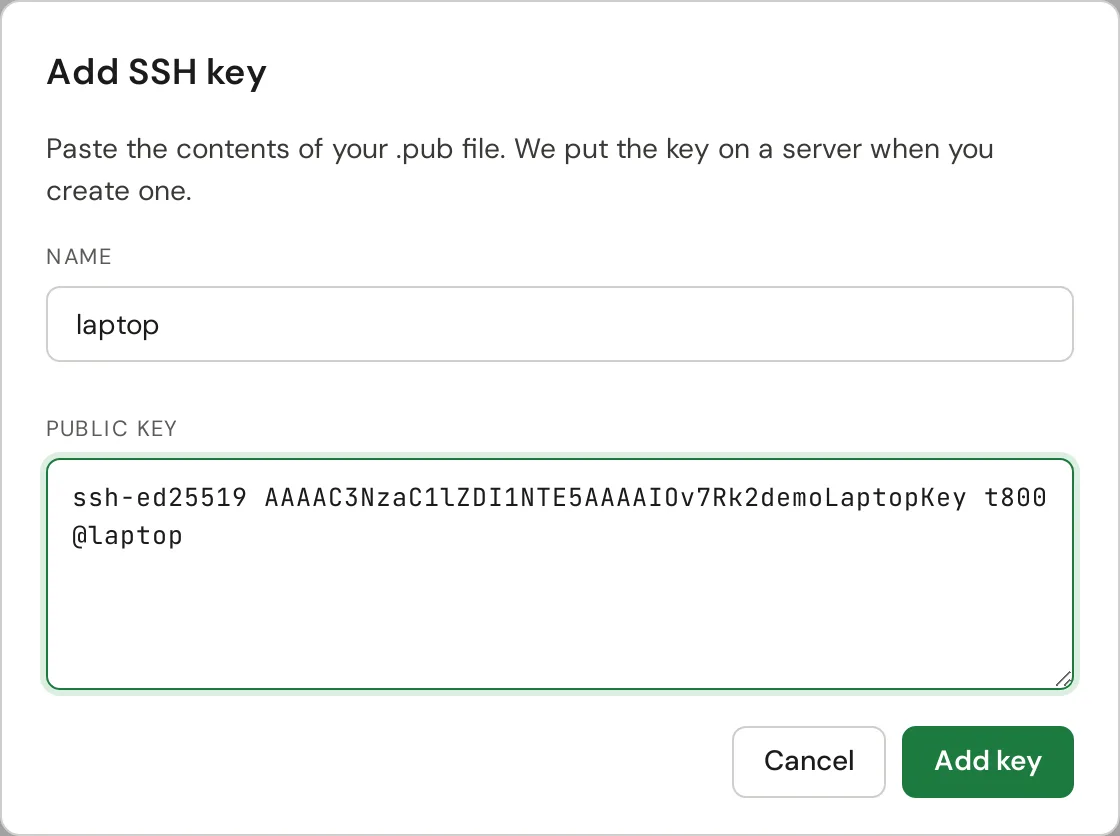
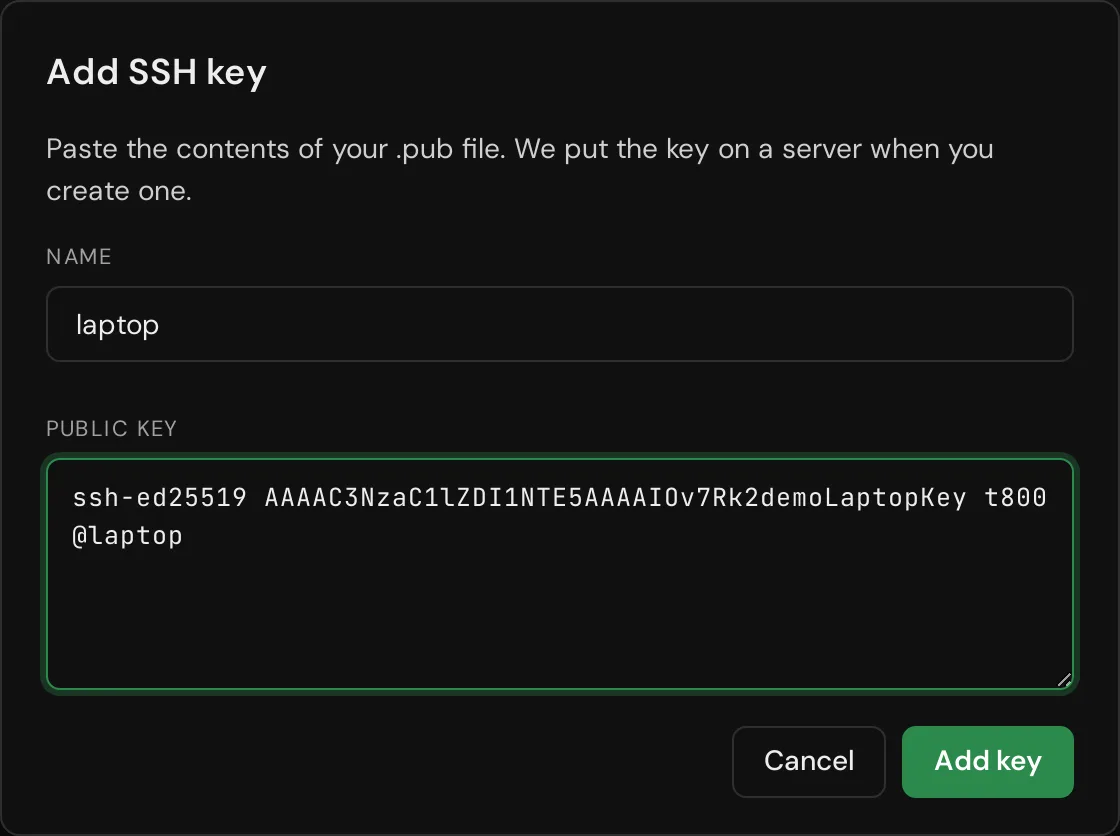
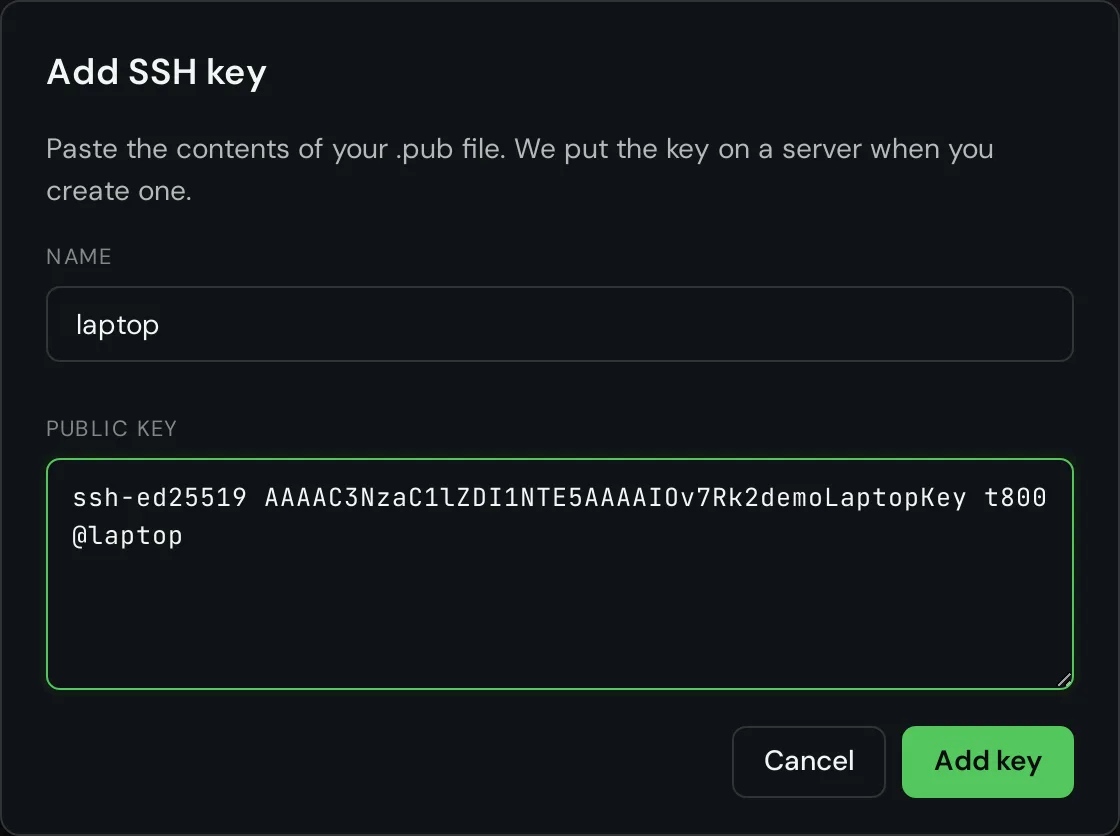
ssh-keygen -t ed25519In the Cloud Panel open SSH Keys and press Add SSH key. You can also add a key later, right in the create page.
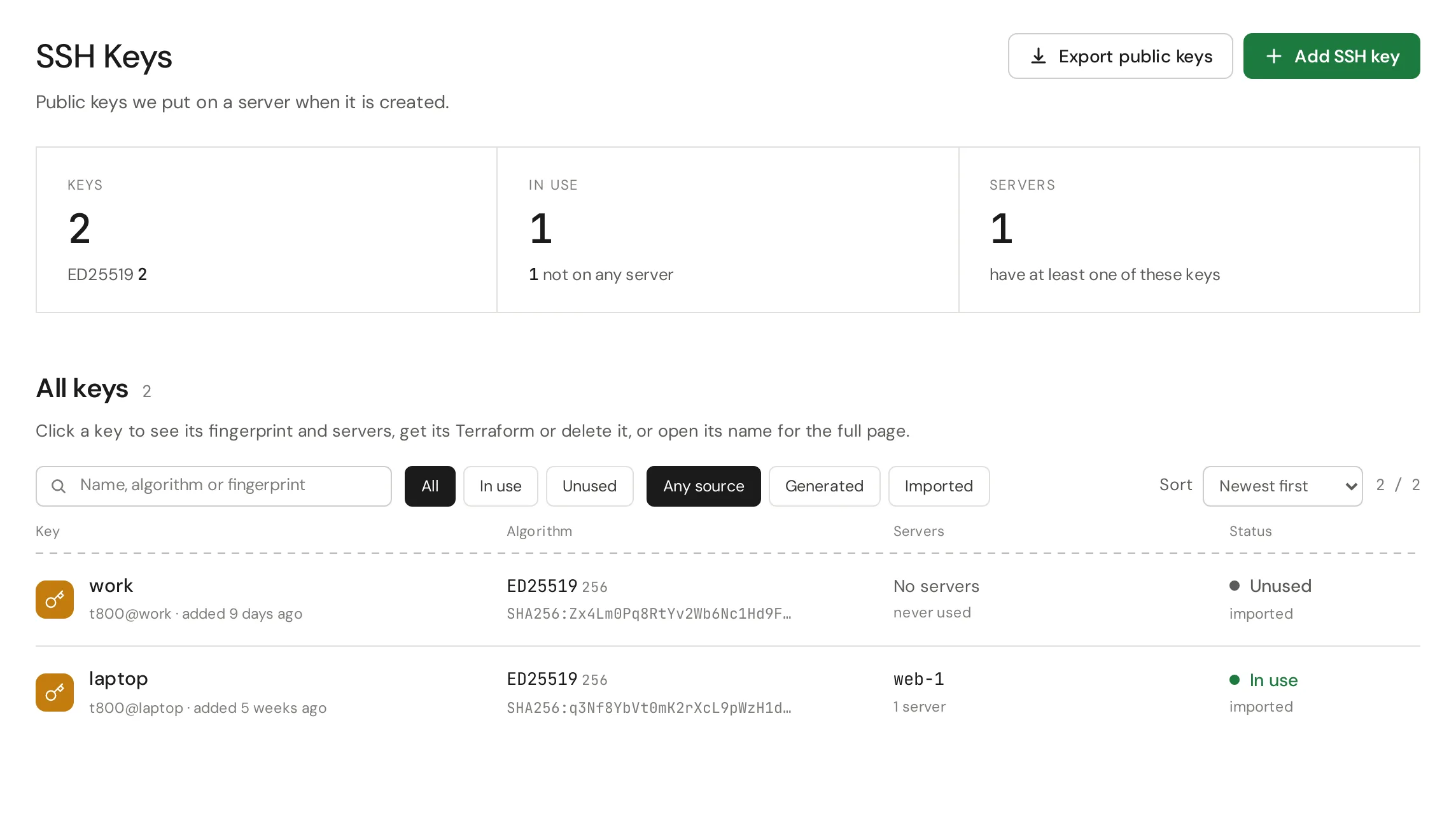
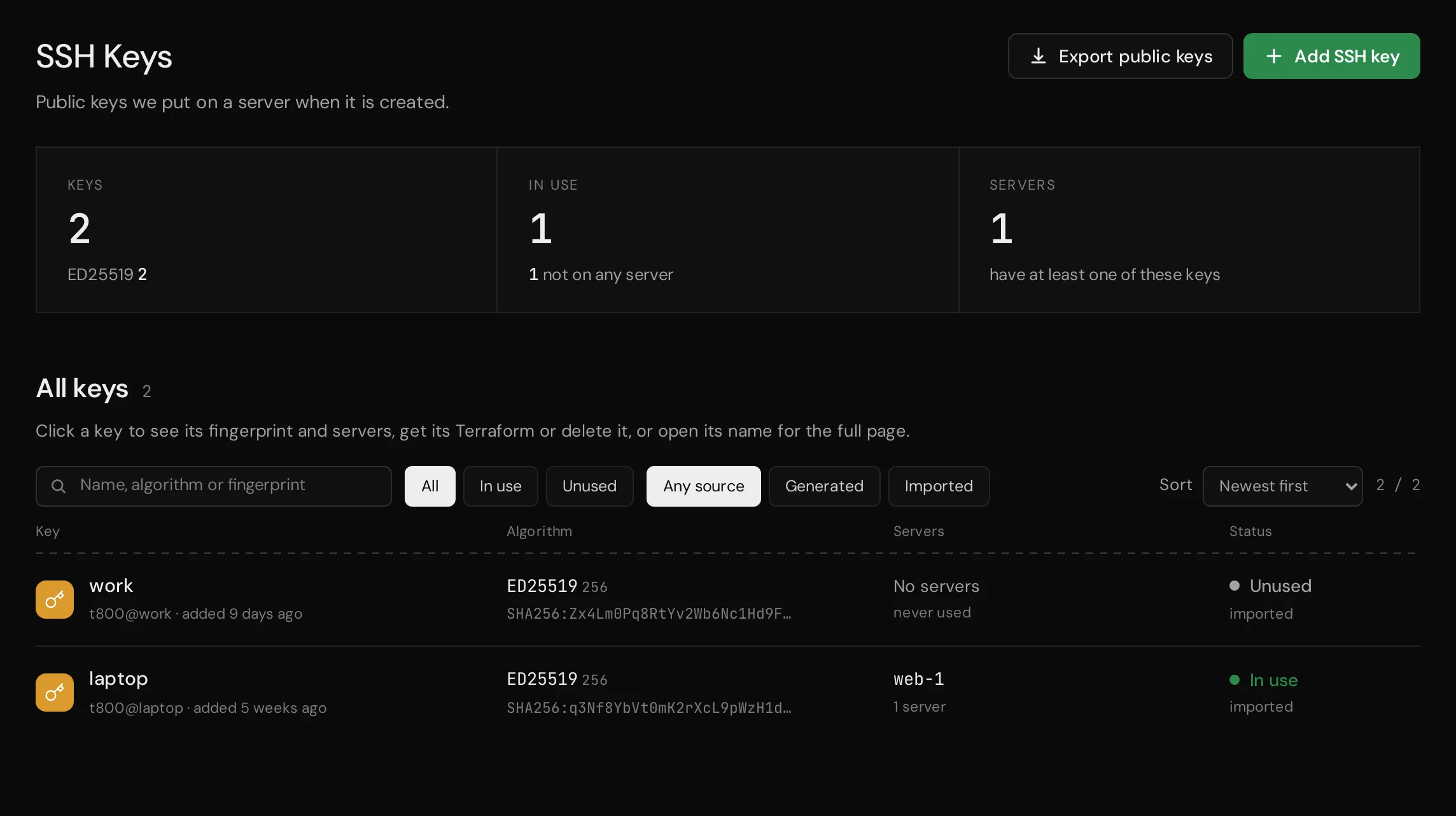
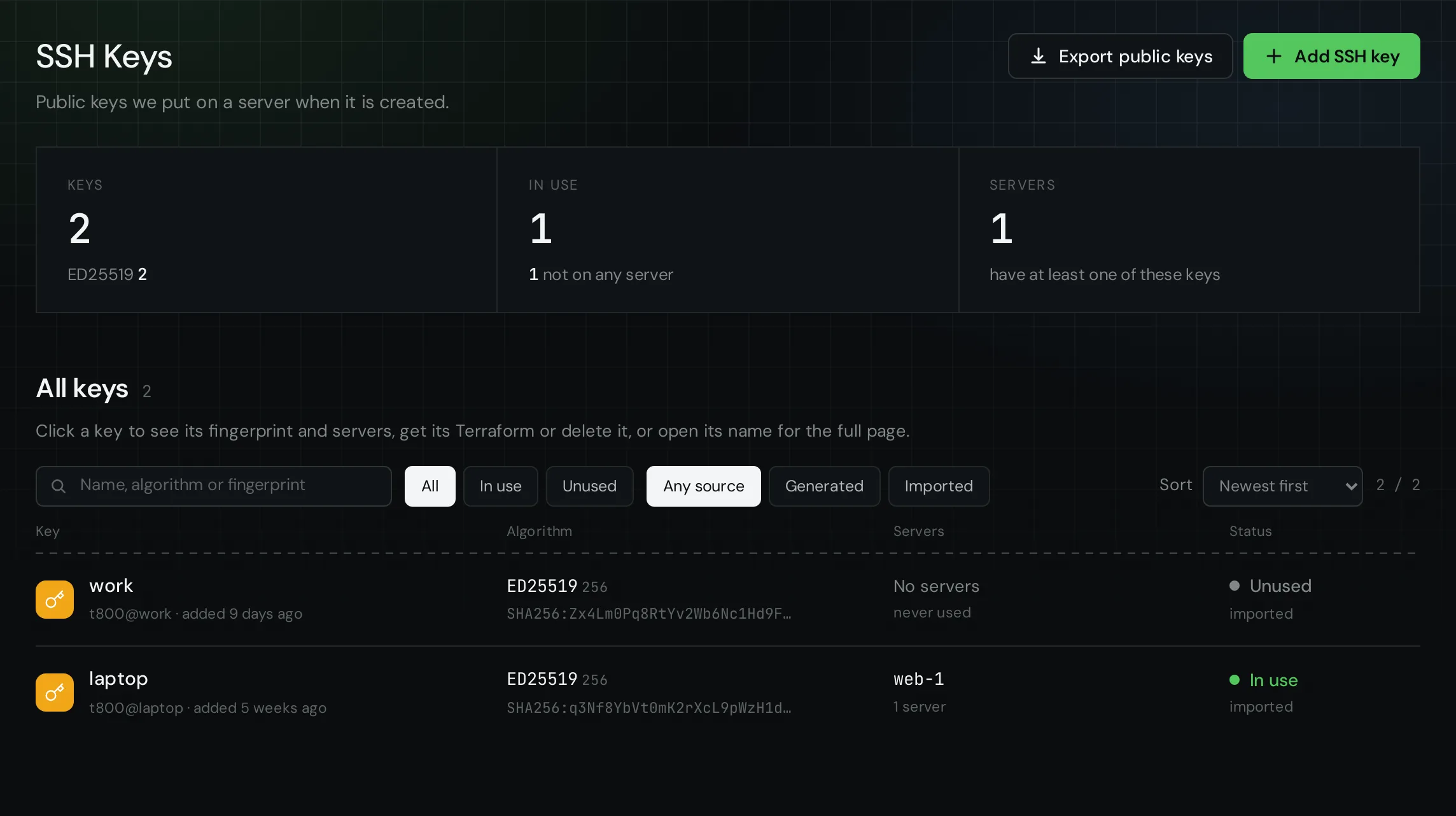
Give the key a name, paste the whole line that starts with ssh-ed25519 and press Add key. Only the public key goes here, never the file without .pub.
2. Pick a system
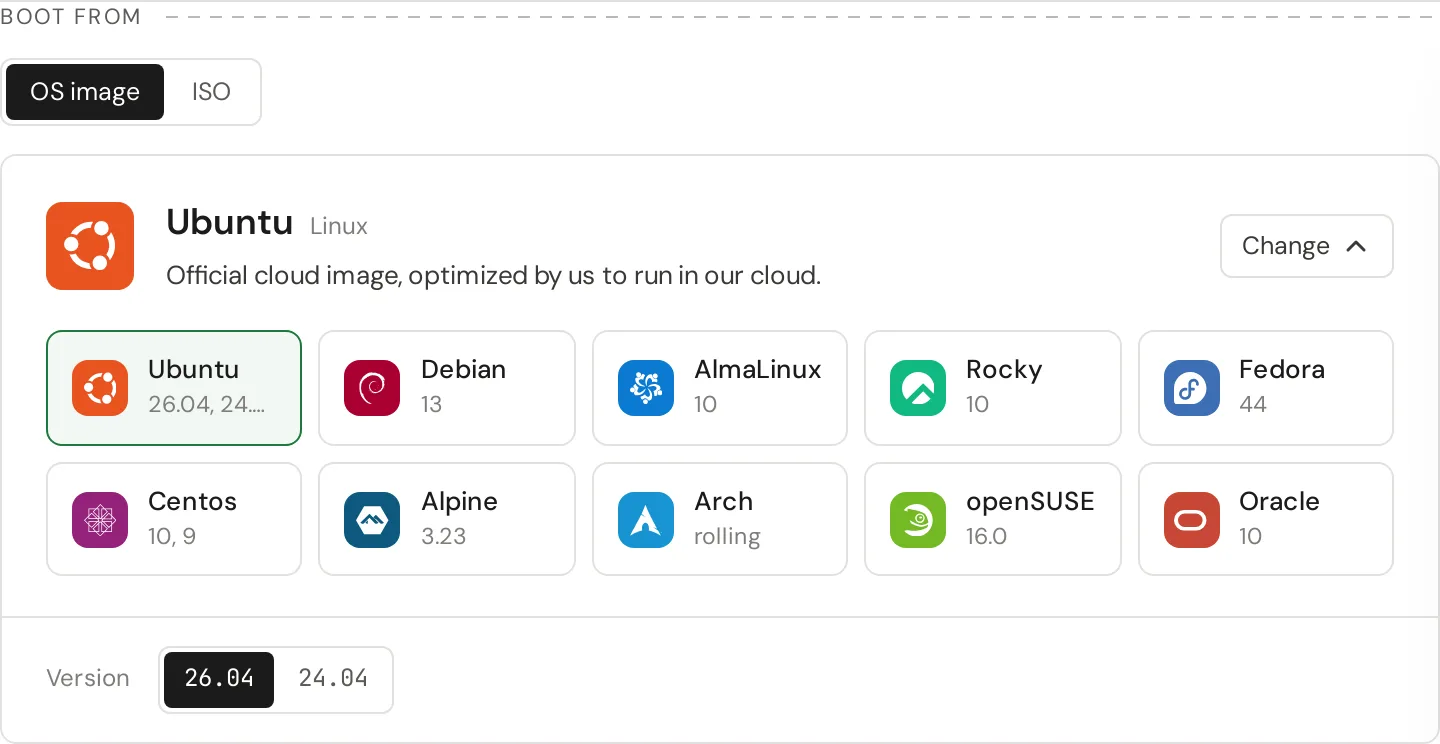
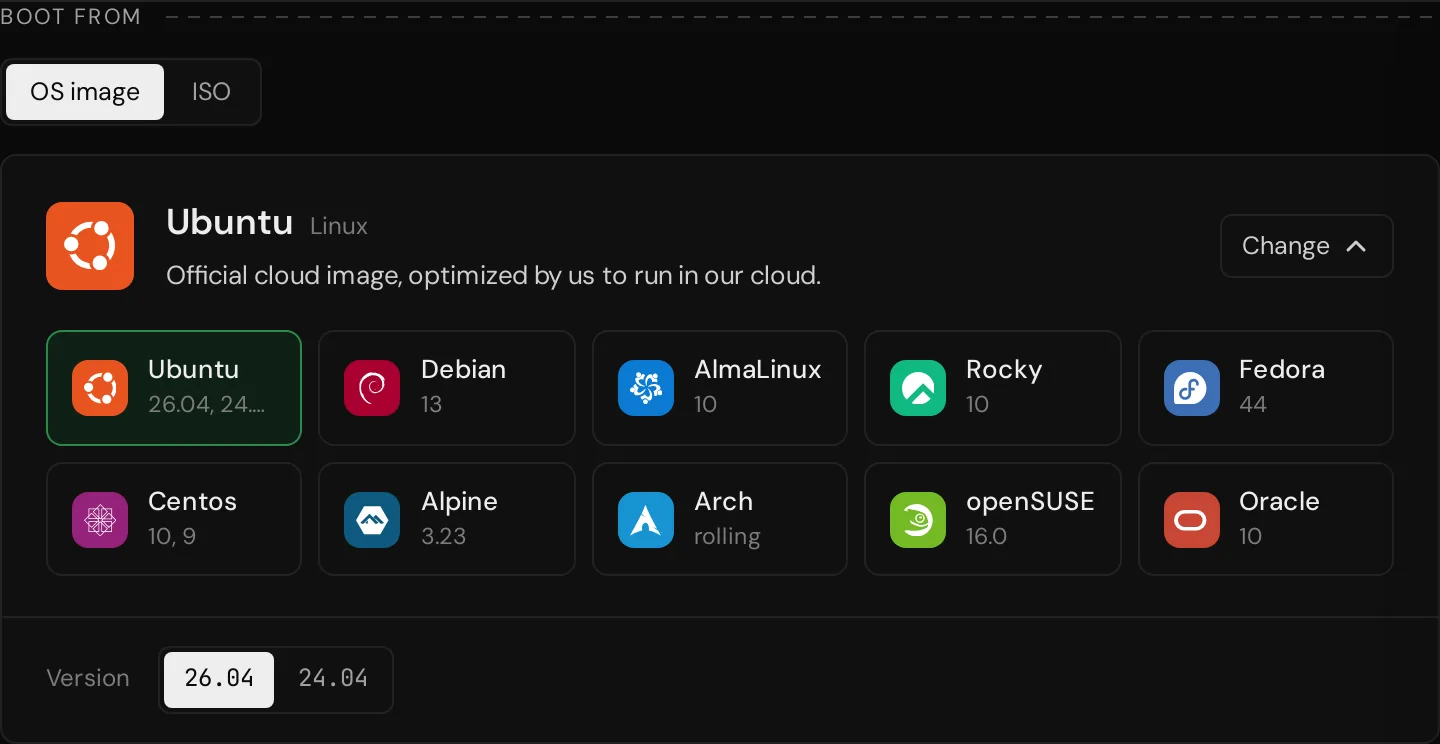
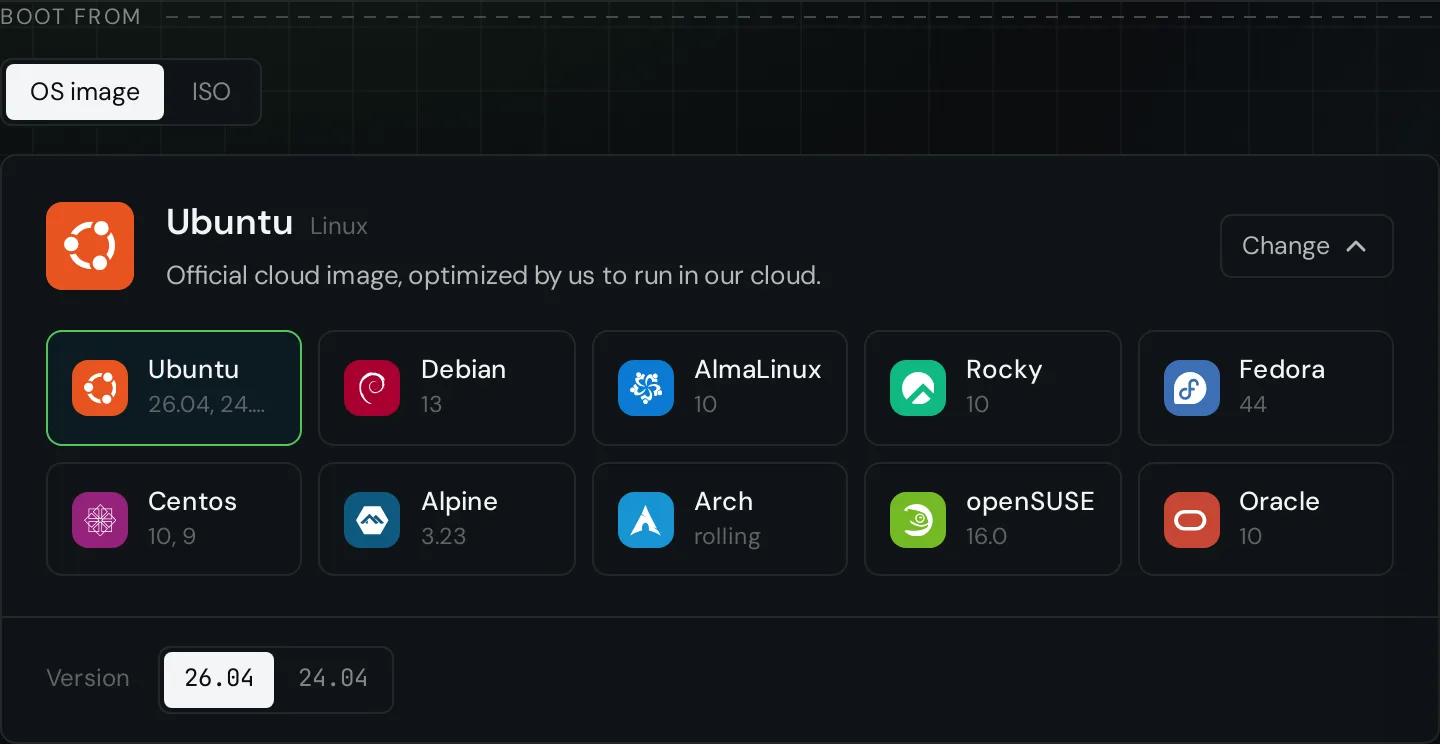
Open Virtual Machines and press Create VM. Under Boot from, keep OS image and choose the system and its version. ISO boots an installer instead, see Install from an ISO.
3. Pick a plan
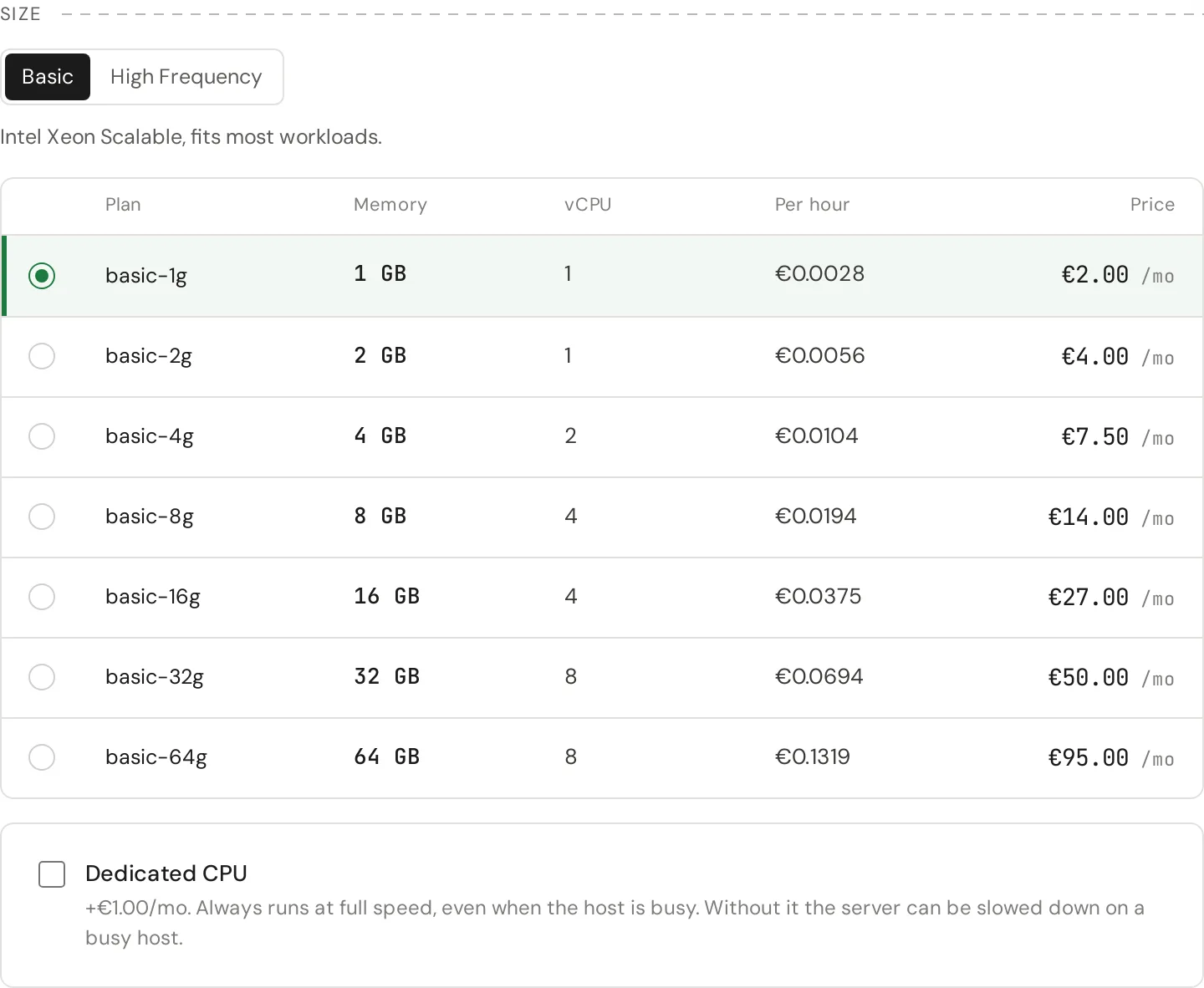
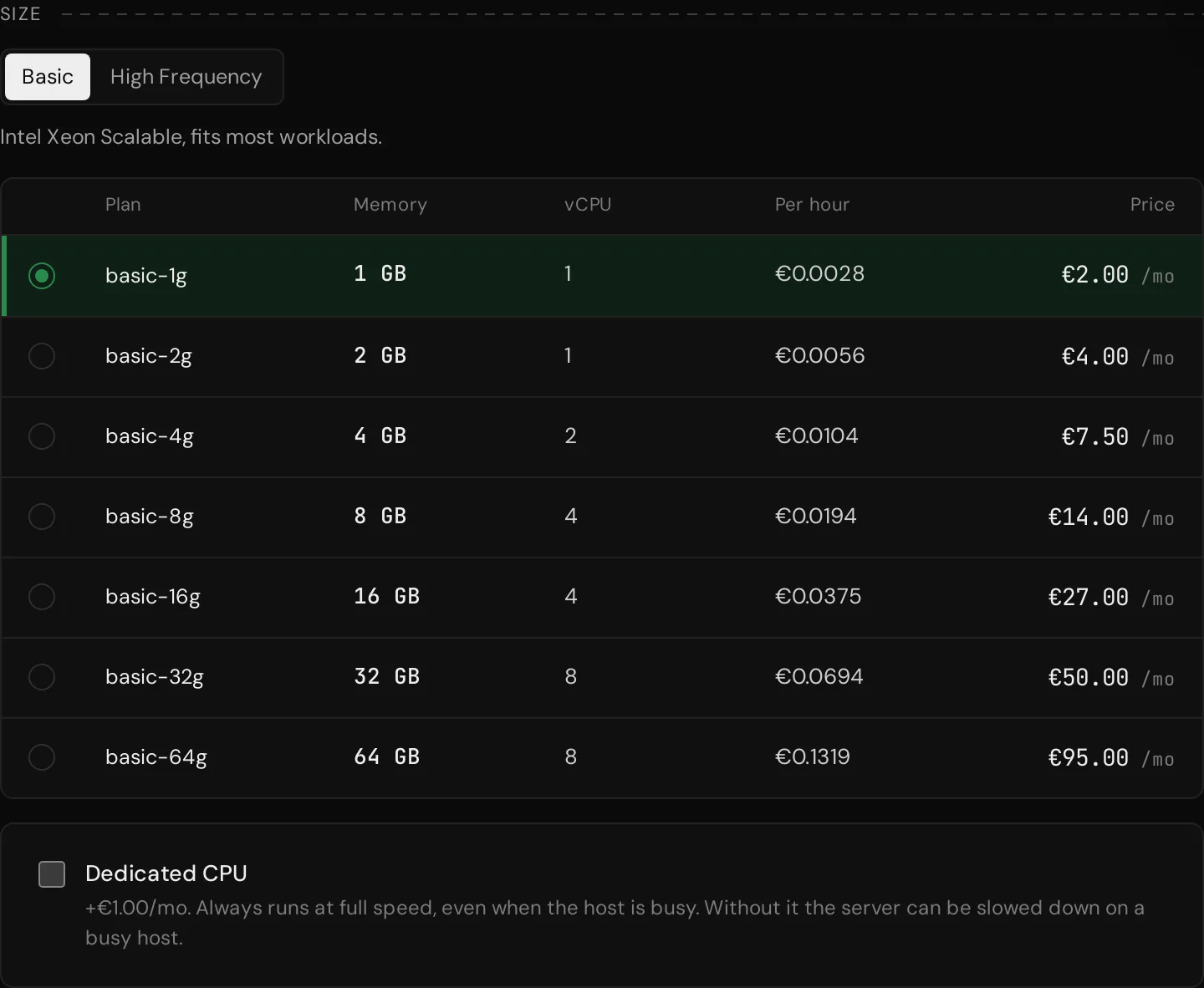
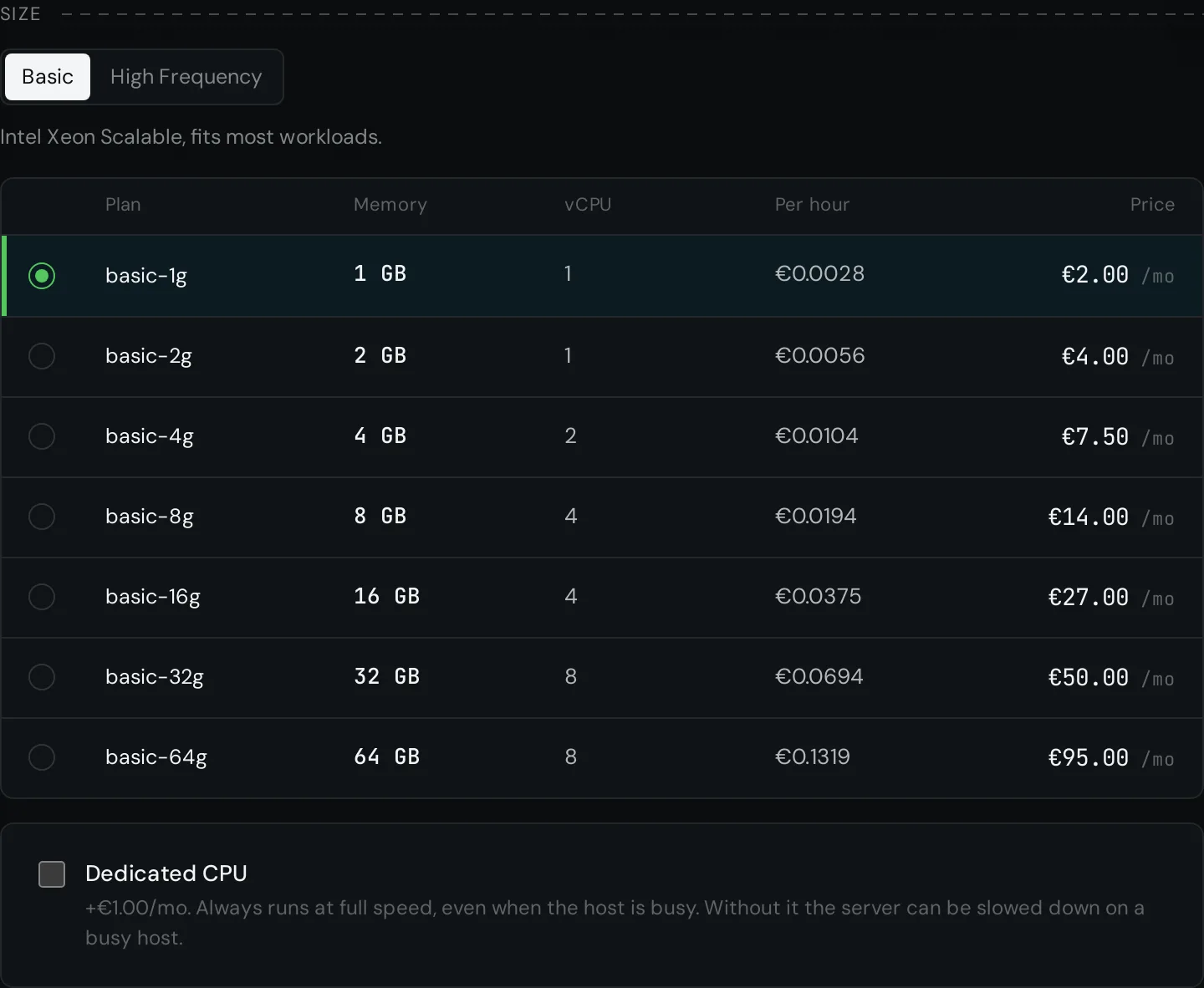
Choose Basic or High Frequency, then a plan by its memory. High Frequency is about three times faster per core, for databases, builds and anything that waits on one core.
Tick Dedicated CPU if the server must keep its full speed when the host is busy; the box shows what it adds. Without it the plan is shared: it runs at full speed too, but can be held back to its guaranteed share under constant load. You can switch later, live.
4. The disk
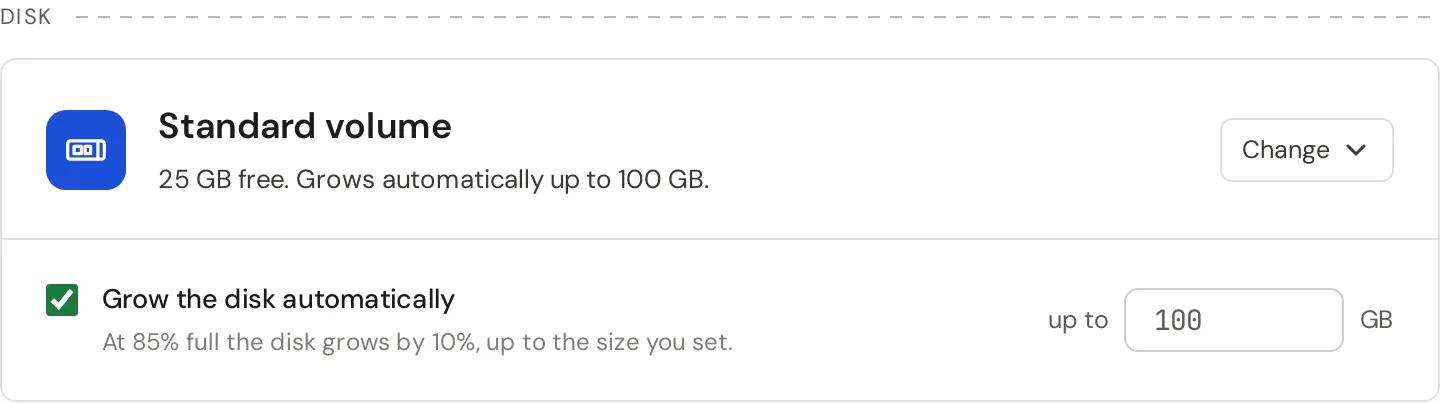
The root disk is a 25 GB Standard volume by default, and those 25 GB are free. Change opens the choice of Standard or Enterprise, the size and the Dedicated disk box. Take Enterprise for a database or a message queue: its drives have power-loss protection, which makes fsync faster.
Grow the disk automatically keeps the disk from filling up: at 85% full it grows by 10%, up to the size you set next to it. It needs monitoring, which is on by default.
5. Name and access
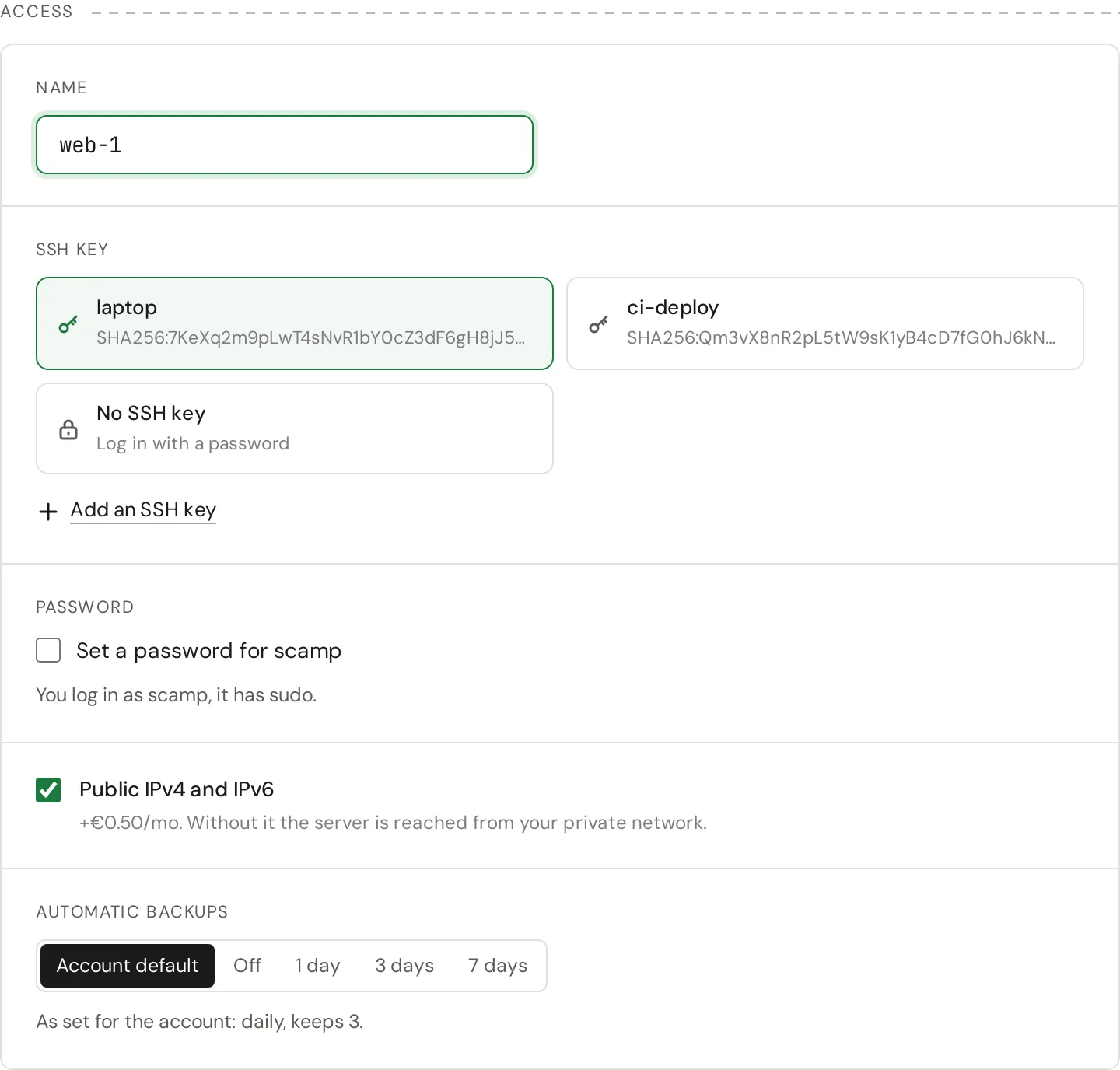
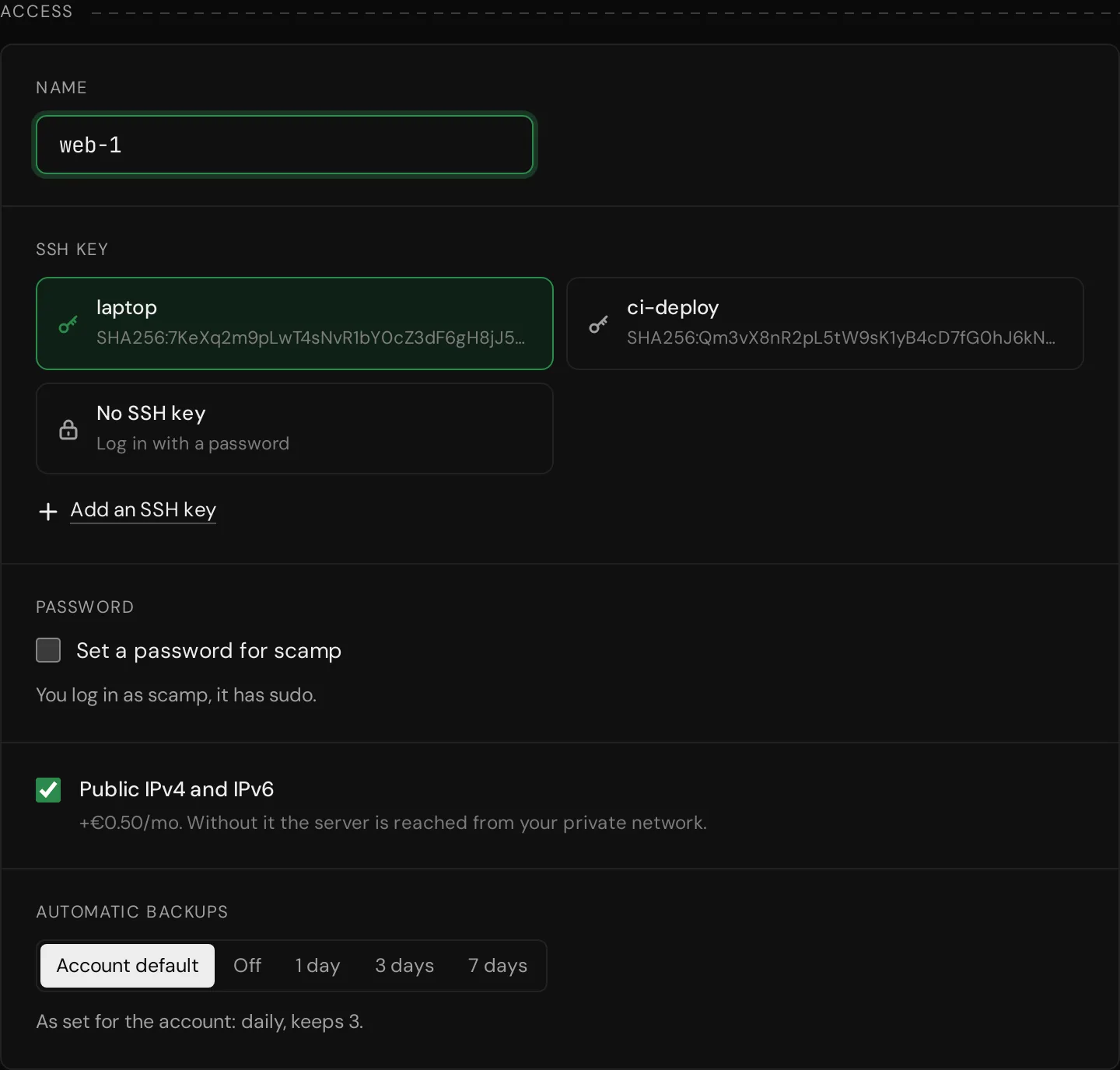
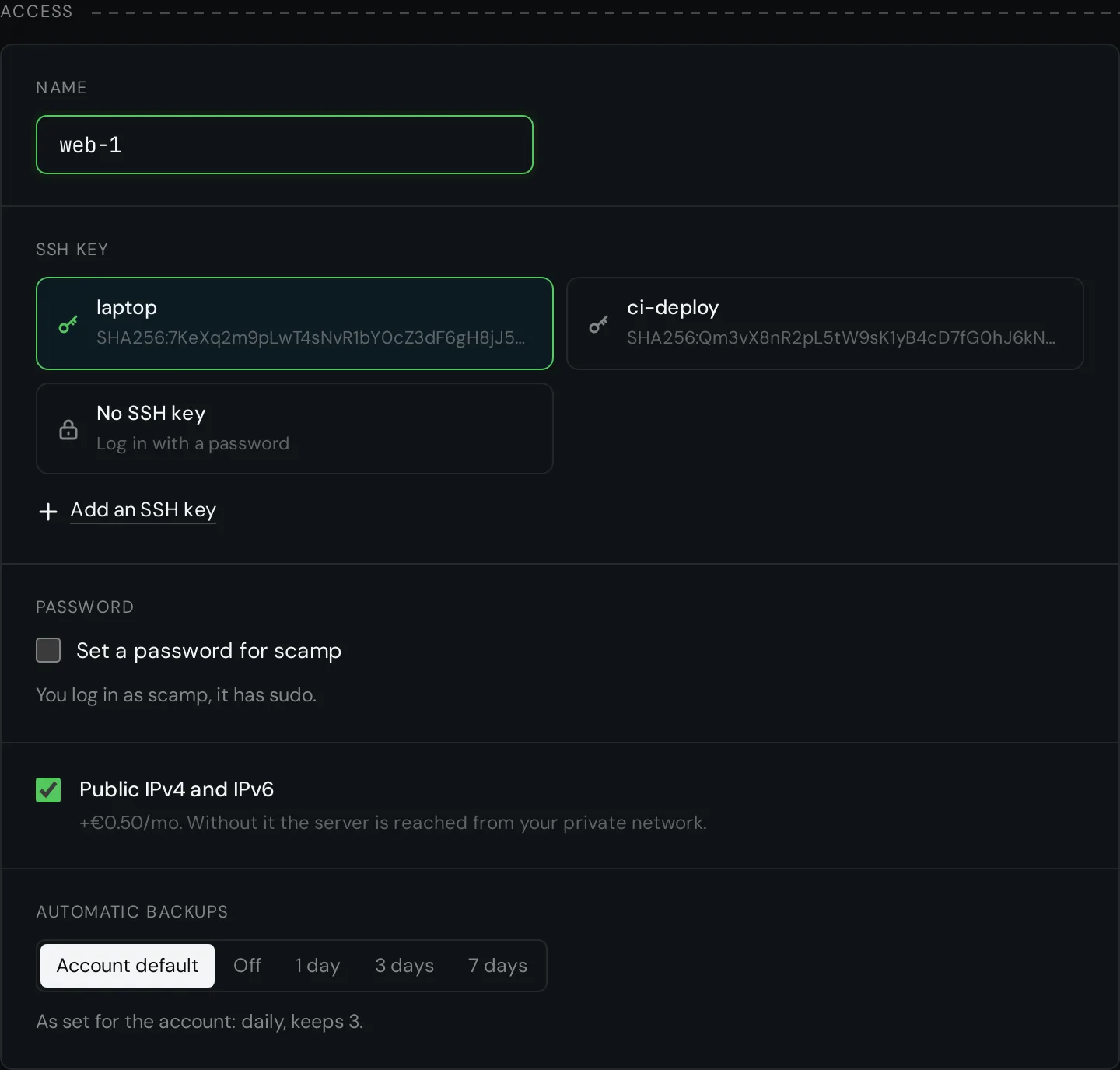
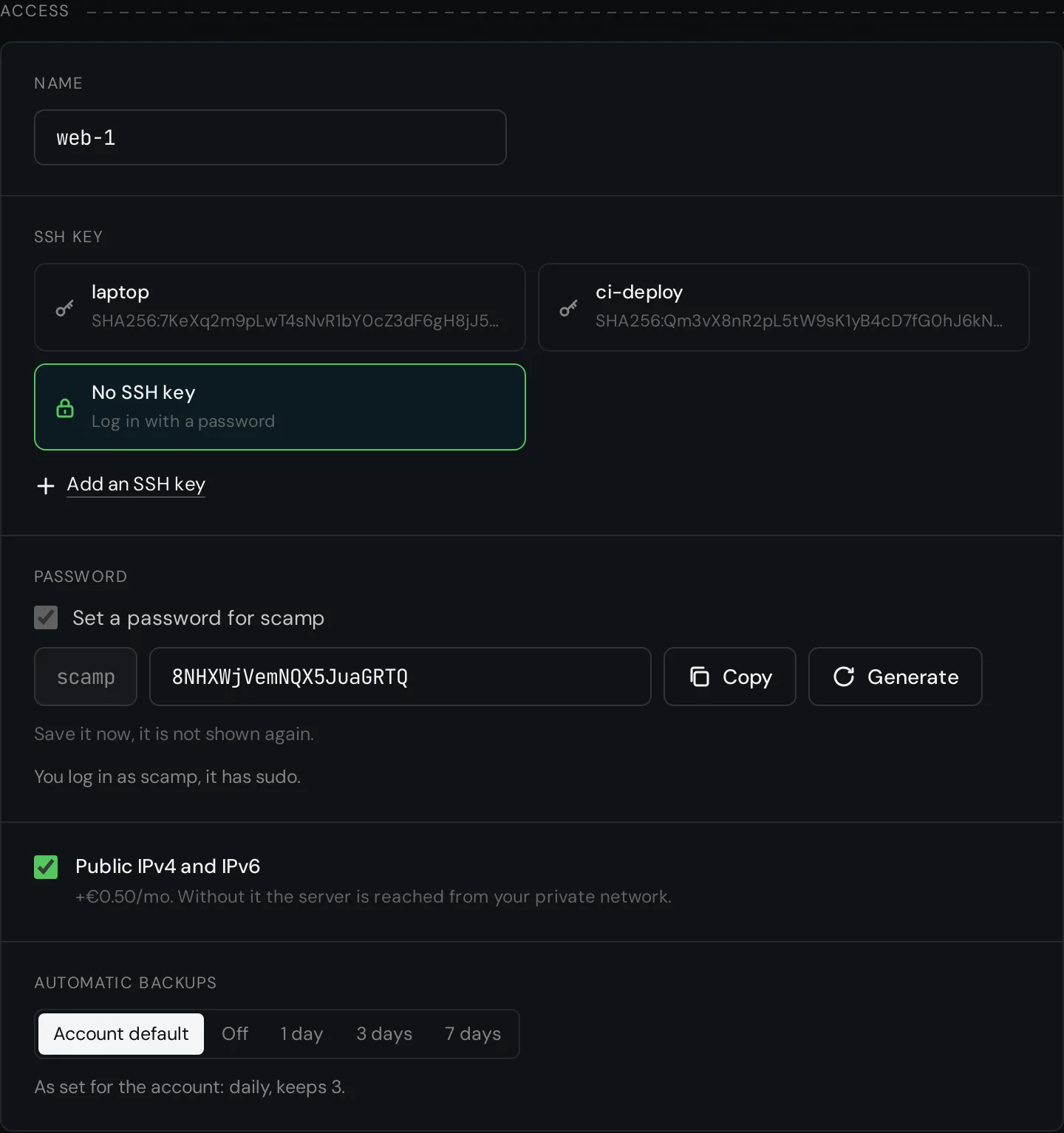
Type a name, or keep the one offered. Under SSH key choose your key; it is put on the server for the scamp user. A password is optional with a key; leave it off unless you need one.
Public IPv4 and IPv6 gives the server its own addresses for a small monthly price. Without them the server is reached only from your private network, for example over the VPN Gateway. Automatic backups follow the account default unless you pick another.
Without an SSH key
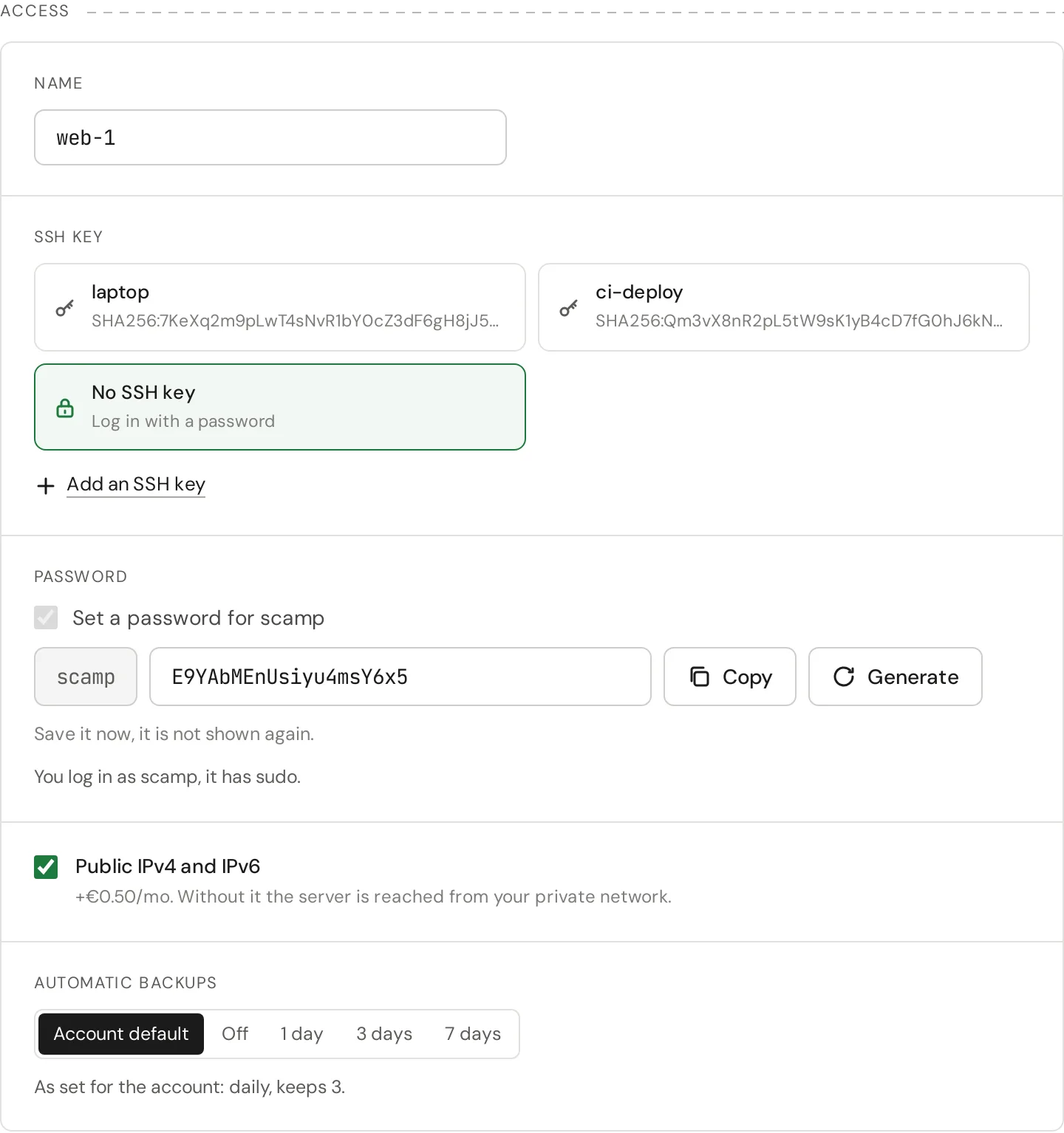
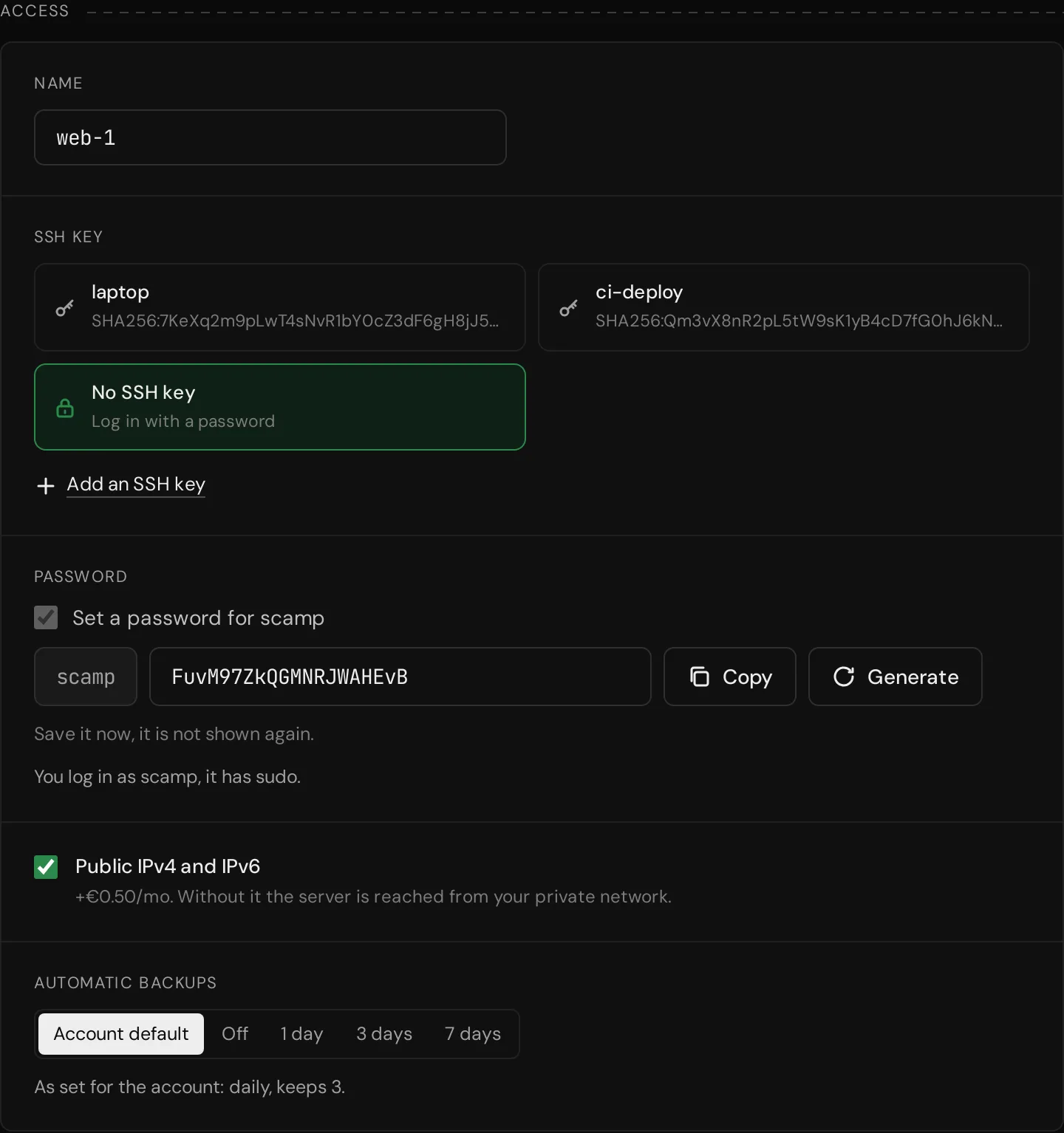
Choose No SSH key. A password for scamp is then required and a strong one is filled in for you; press Generate for another, or type your own of 8 to 64 characters.
Press Copy and keep the password somewhere safe now. The Cloud Panel does not show it again.
Advanced
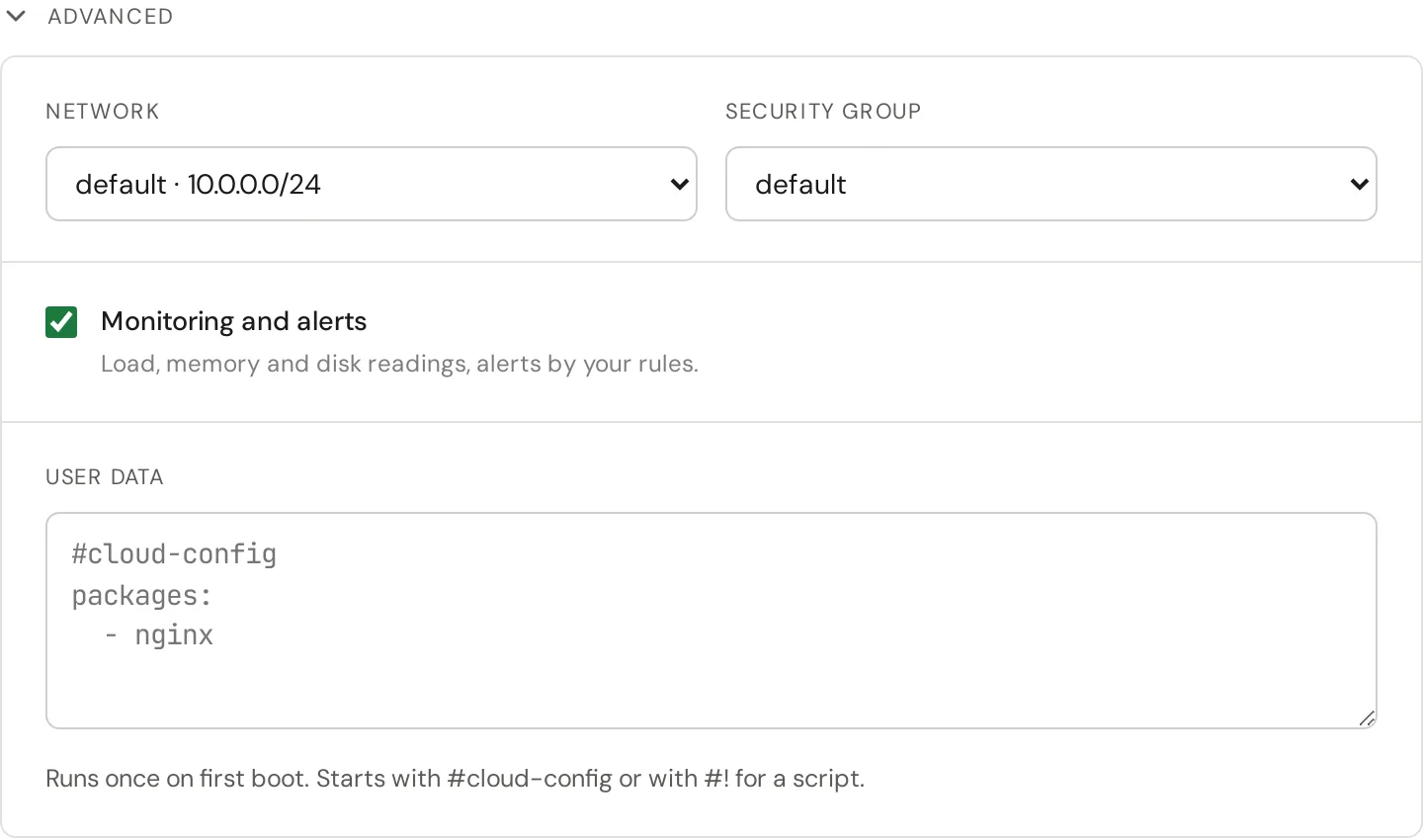
Under Advanced are the network and the security group the server goes into, monitoring, and user data: a #cloud-config or a script that runs once at first boot. The defaults fit a first server; you can leave this closed.
6. Create
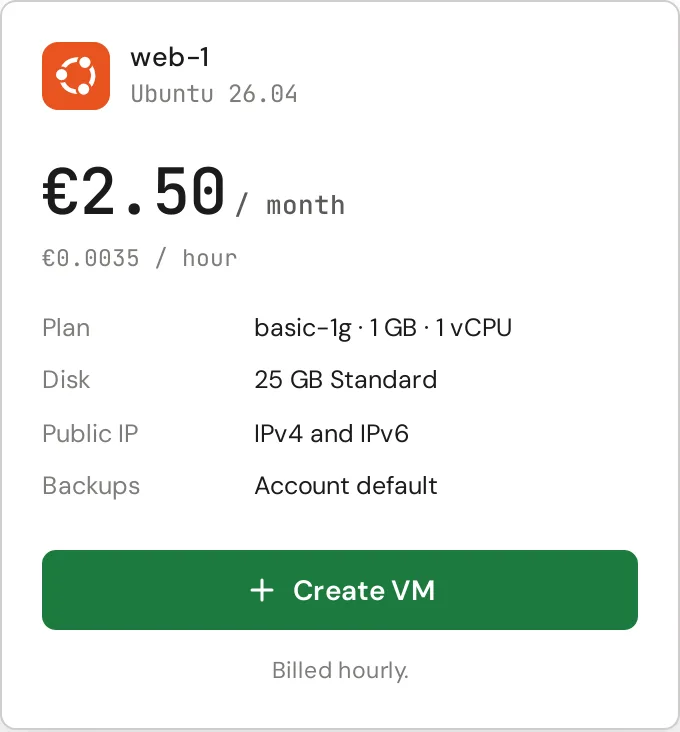
The summary on the right shows the plan, the disk, the address and the price a month and an hour. Press Create VM.
7. Connect
You are back on the list of servers, where the new one shows its progress. When it turns Running, open it: the server page has its addresses and the command to log in.
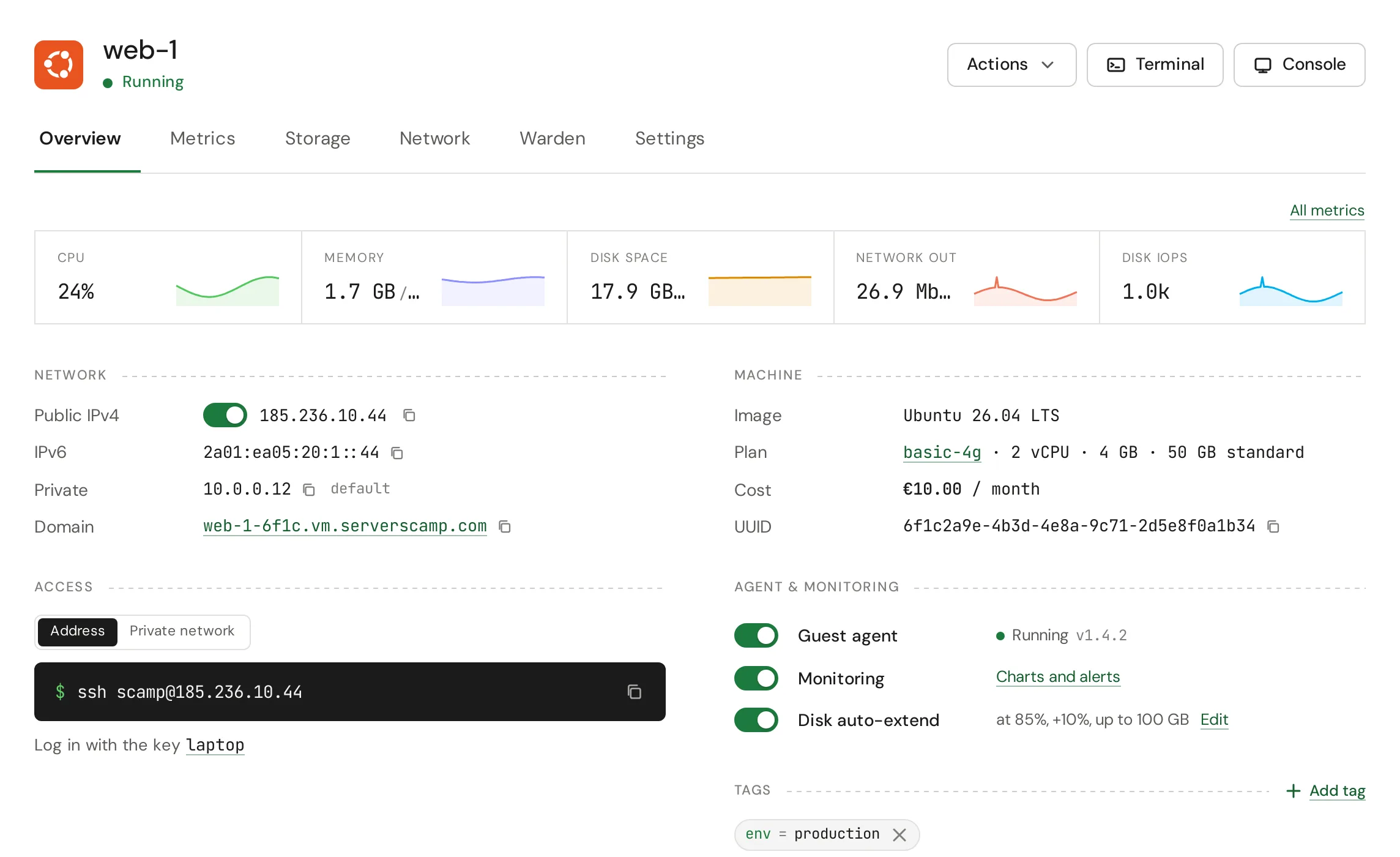
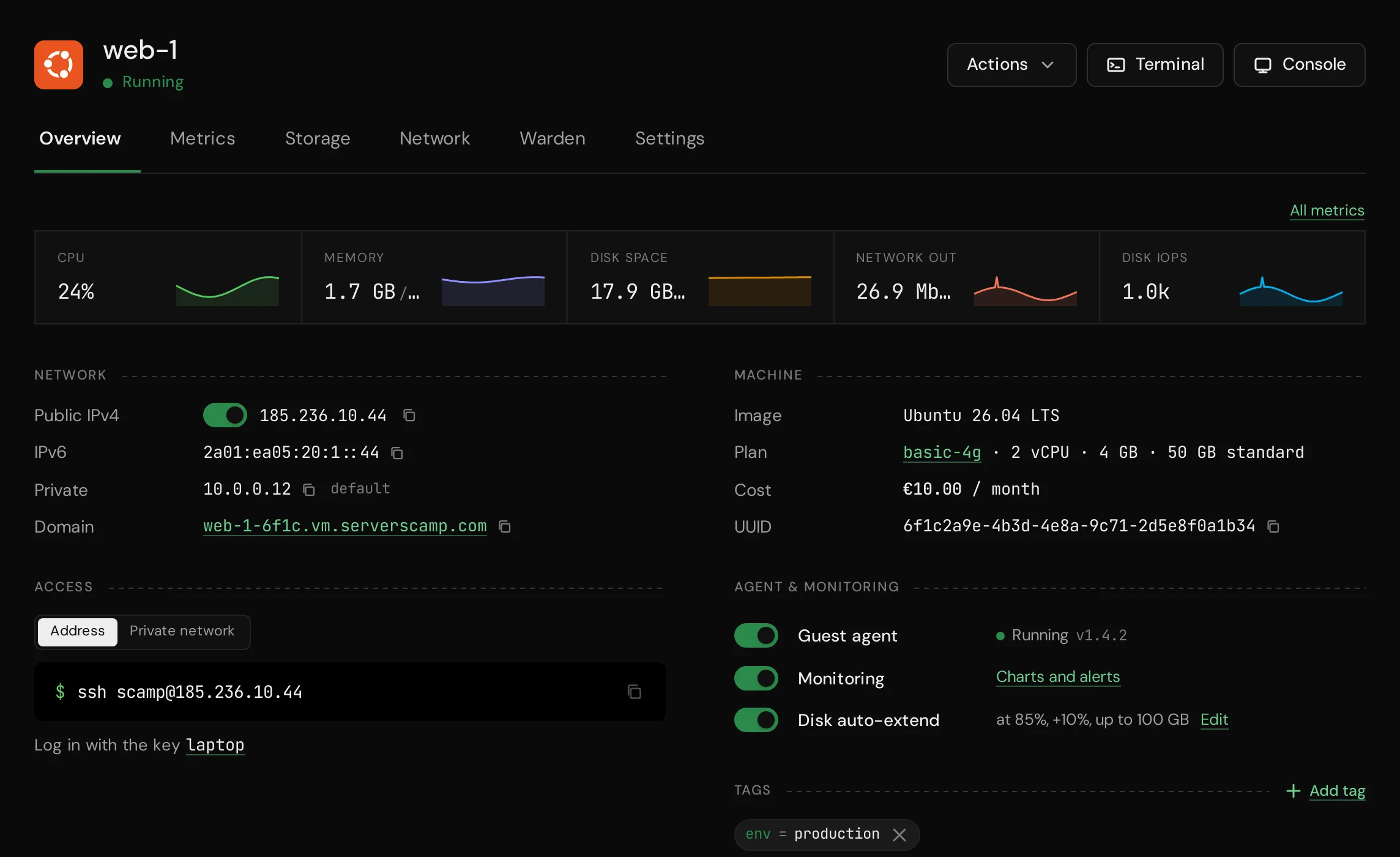
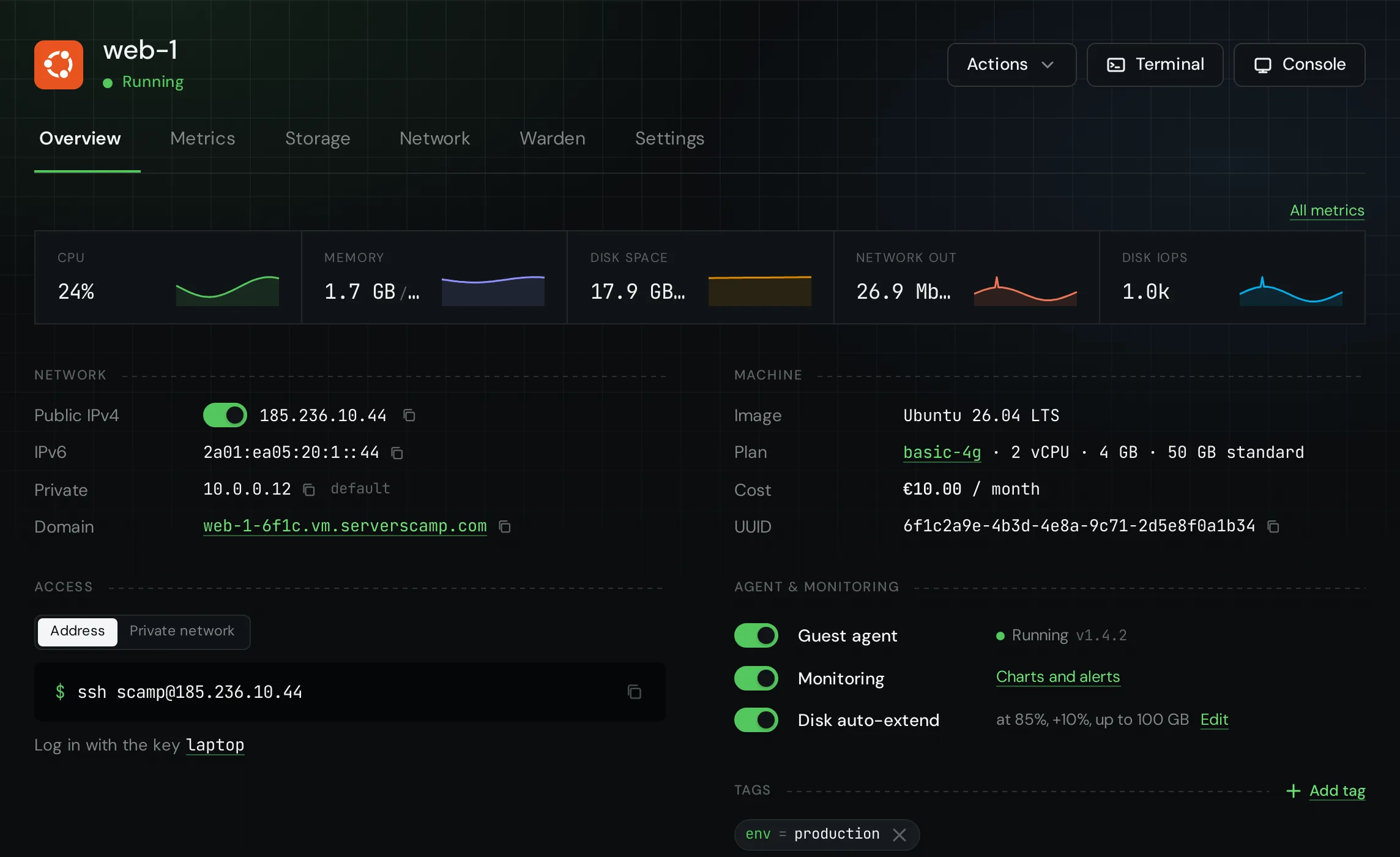
With a key, ssh logs you in without a question. With a password, ssh asks for the one you saved. The first time, ssh also asks whether you trust the server's key; answer yes.
If you cannot get in
The server page has Terminal and Console. Both reach the server in the browser without the network or SSH, so you can see what it shows on boot and fix a firewall rule or a broken sshd. Check the server's security group too: SSH has to be open there.
Next: plan changes, snapshots and backups and monitoring.