

Create a VPS in the Cloud Panel
A server is ready in about a minute. You sign in to it as root, with an SSH key or with a password.
Before you start
Creating a VPS needs a balance that covers one month of the plan you pick. The server is then billed by the hour from it.
An SSH key is the safer way in and the one we recommend. If you do not use keys, skip to Without an SSH key.
1. Add your SSH key
Skip this if your key is already in the Cloud Panel. Show your public key on your computer:
cat ~/.ssh/id_ed25519.pubIf the file does not exist, make a key first and run the line above again:
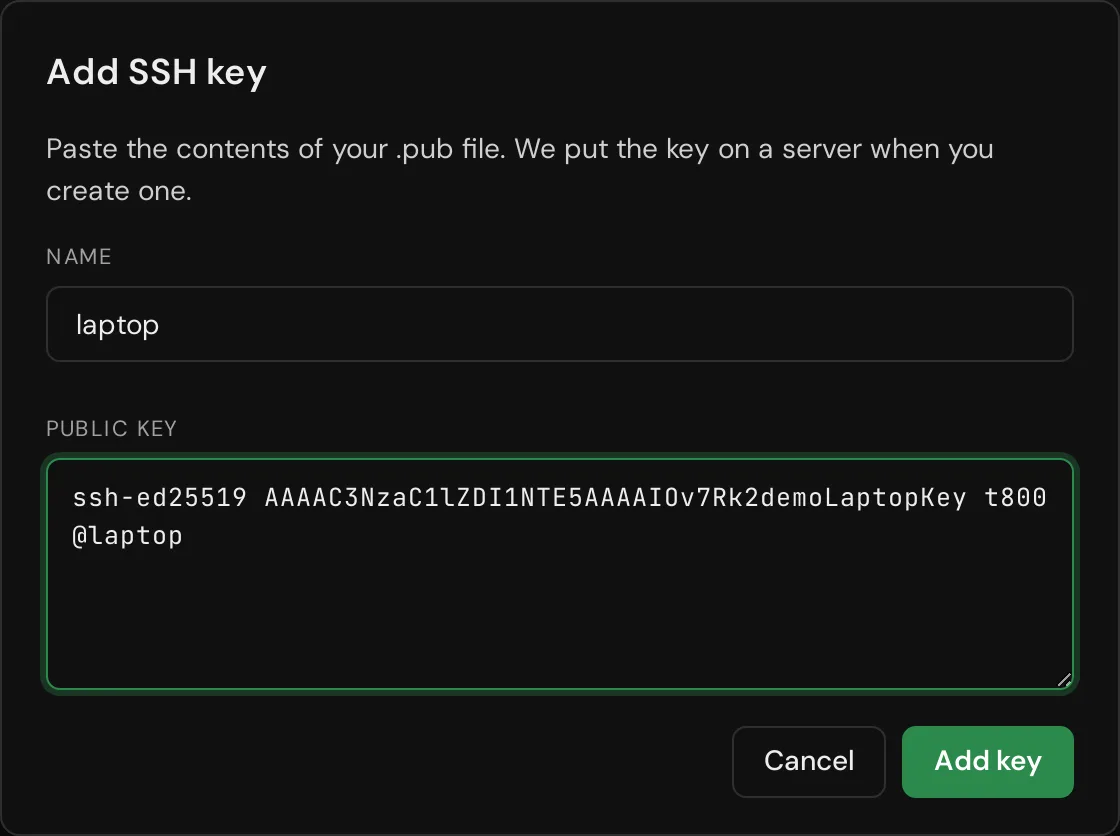
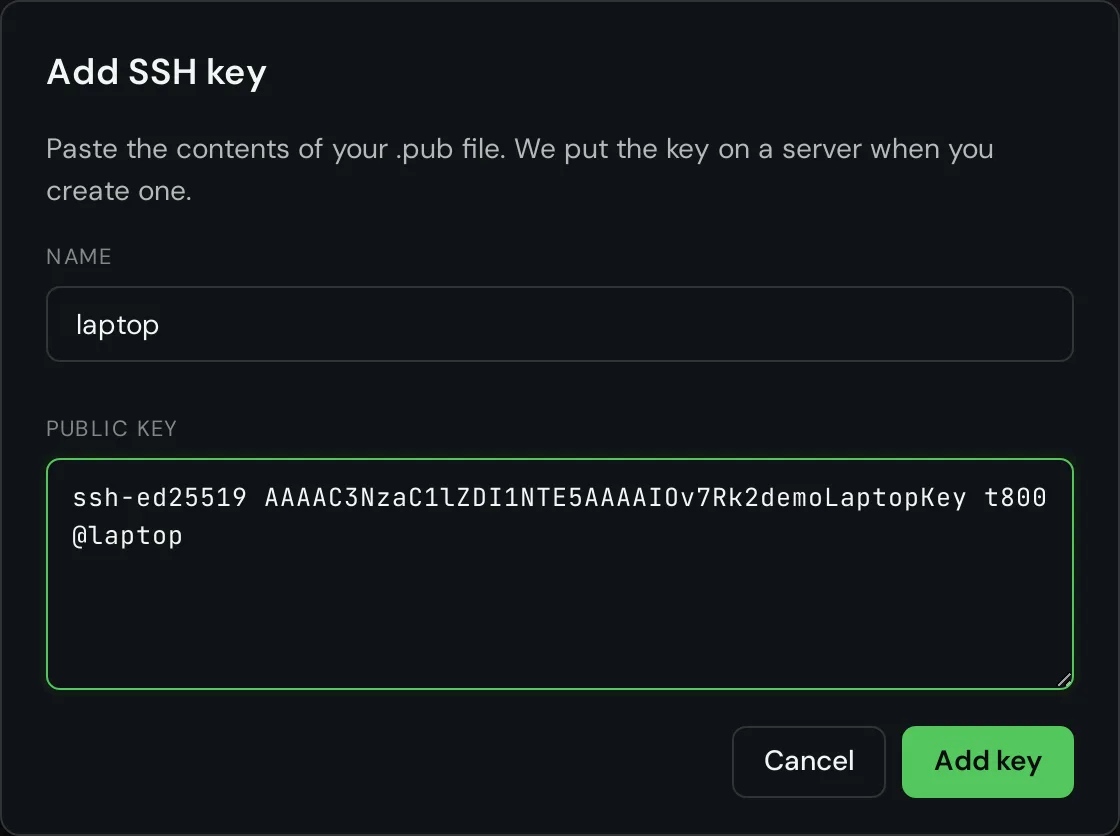
ssh-keygen -t ed25519In the Cloud Panel open SSH Keys and press Add SSH key.
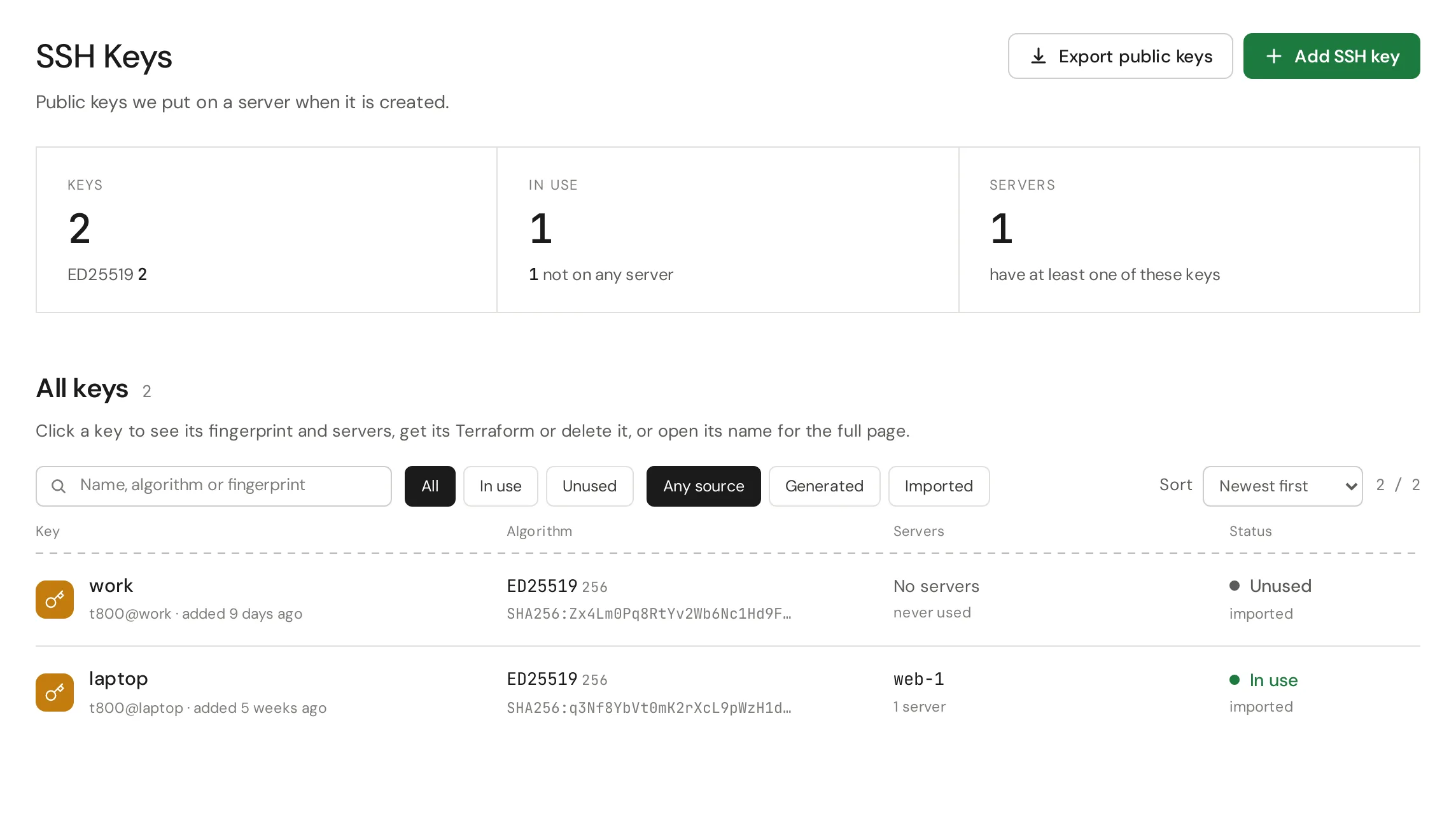
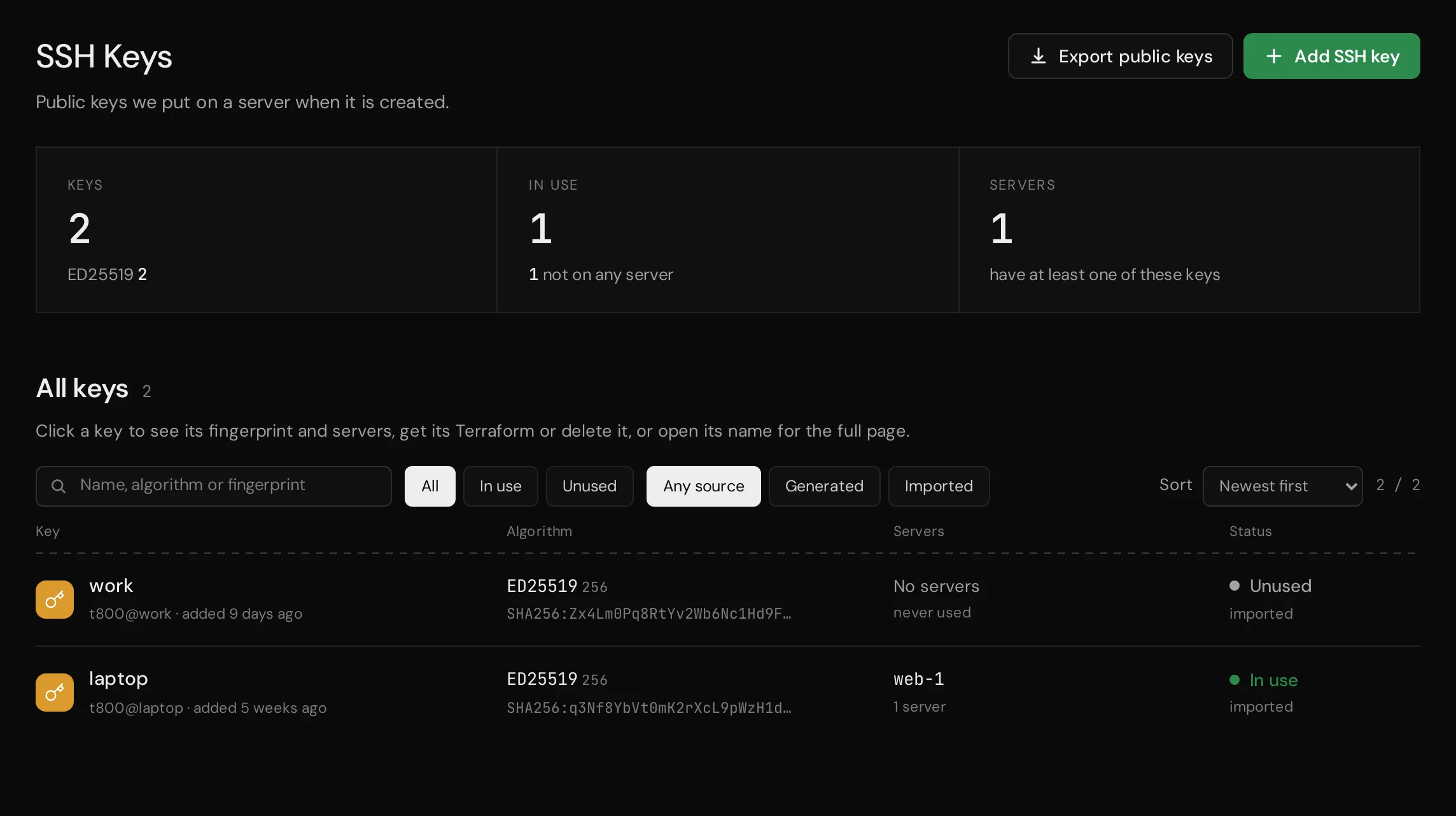
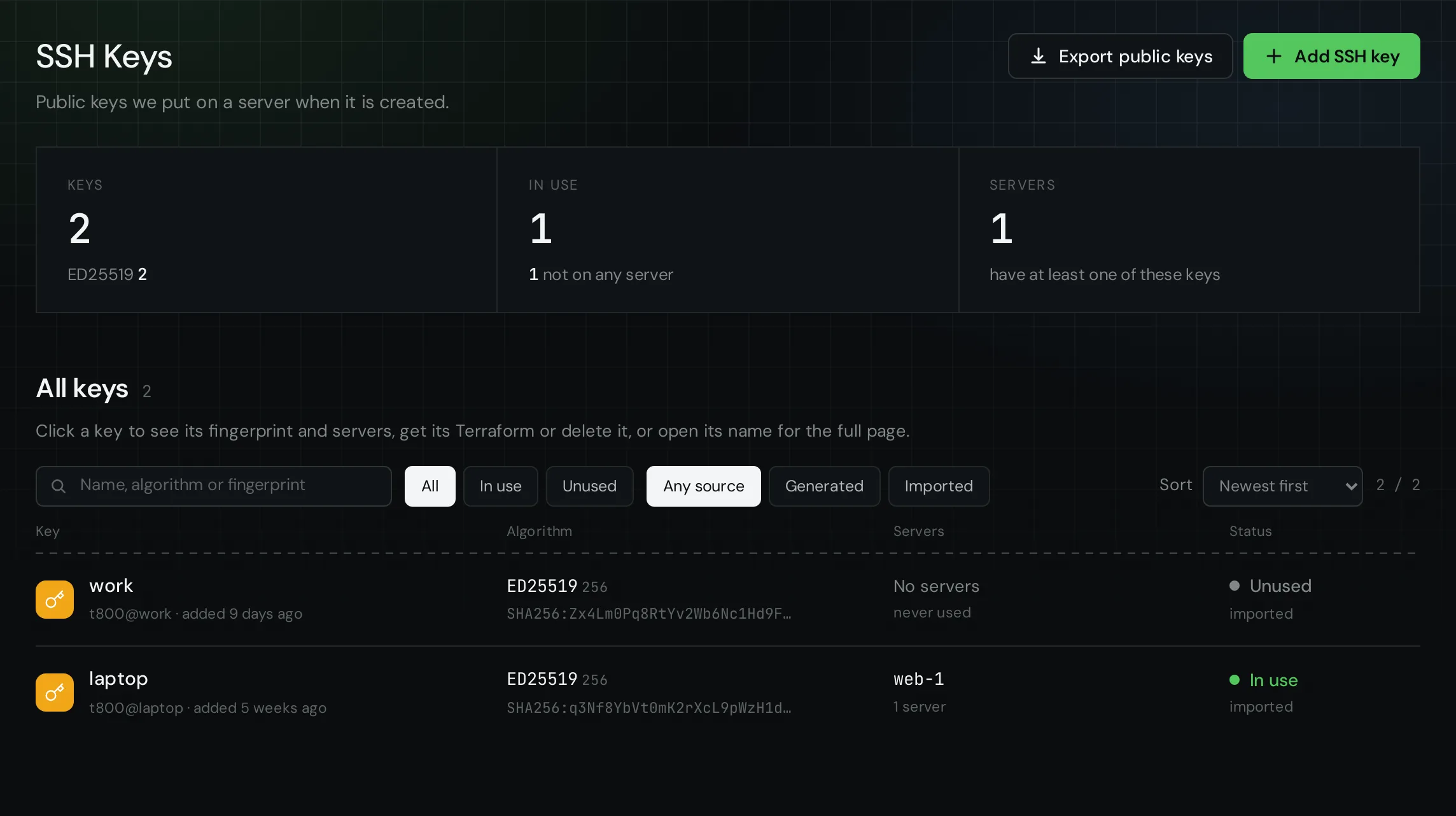
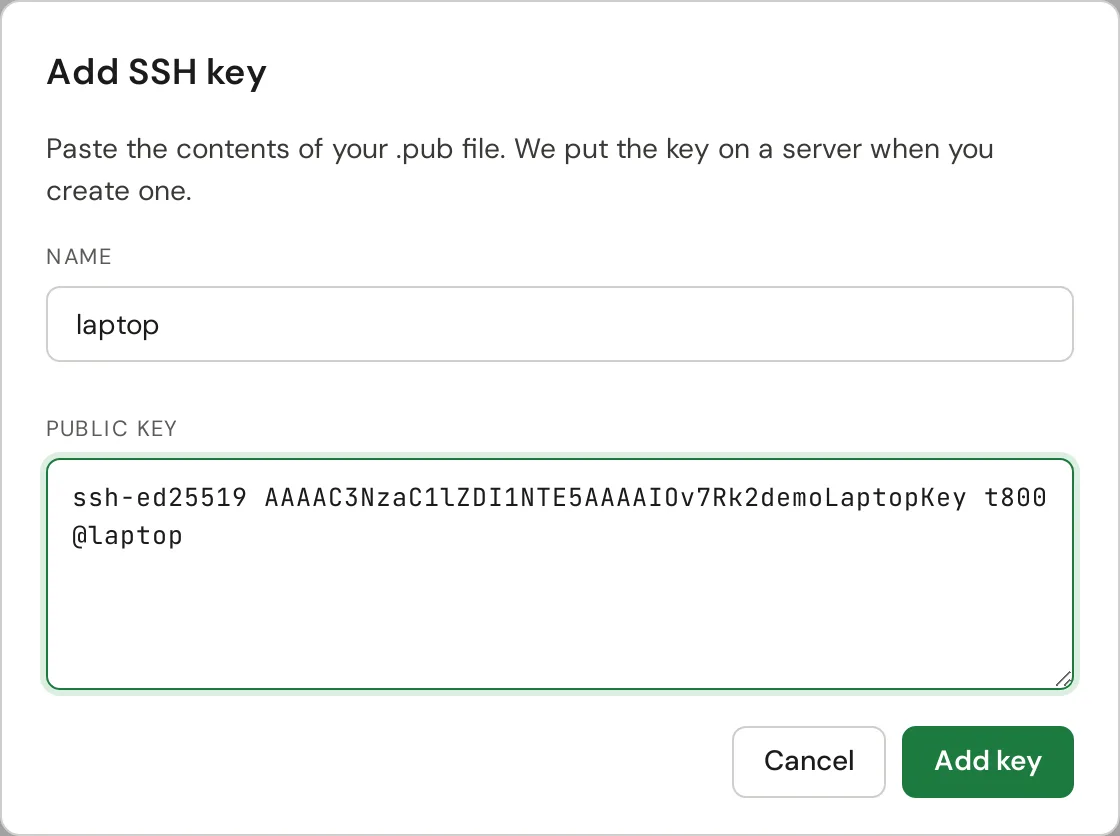
Give the key a name, paste the whole line that starts with ssh-ed25519 and press Add key. Only the public key goes here, never the file without .pub.
2. Pick a system
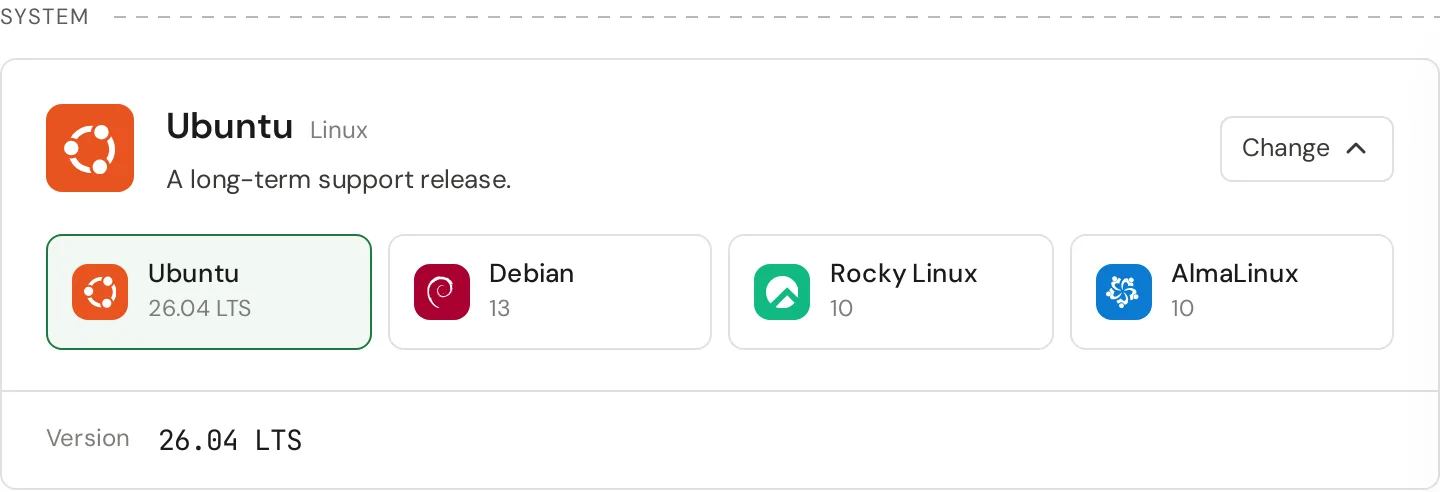
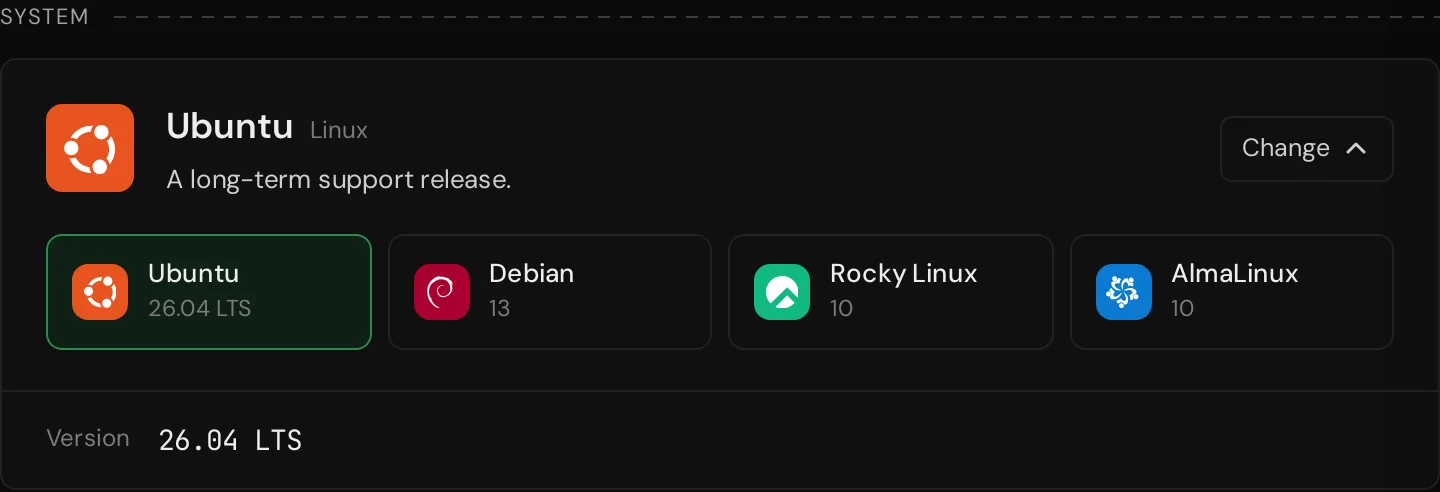
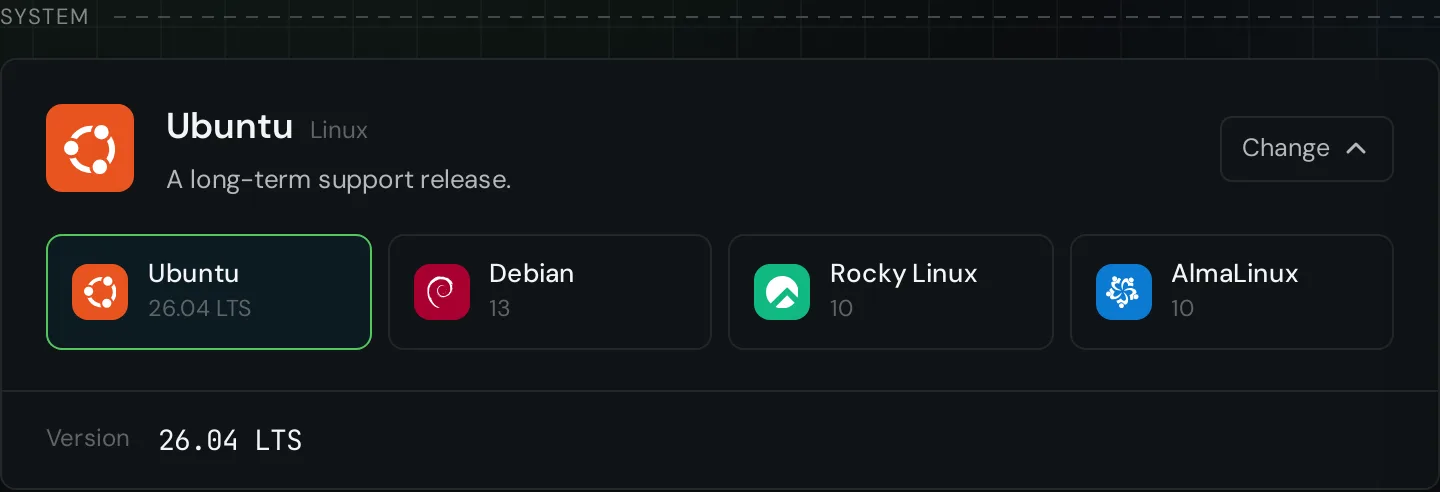
Open Simple VPS and press Create VPS. Choose the system and its version.
3. Pick a plan
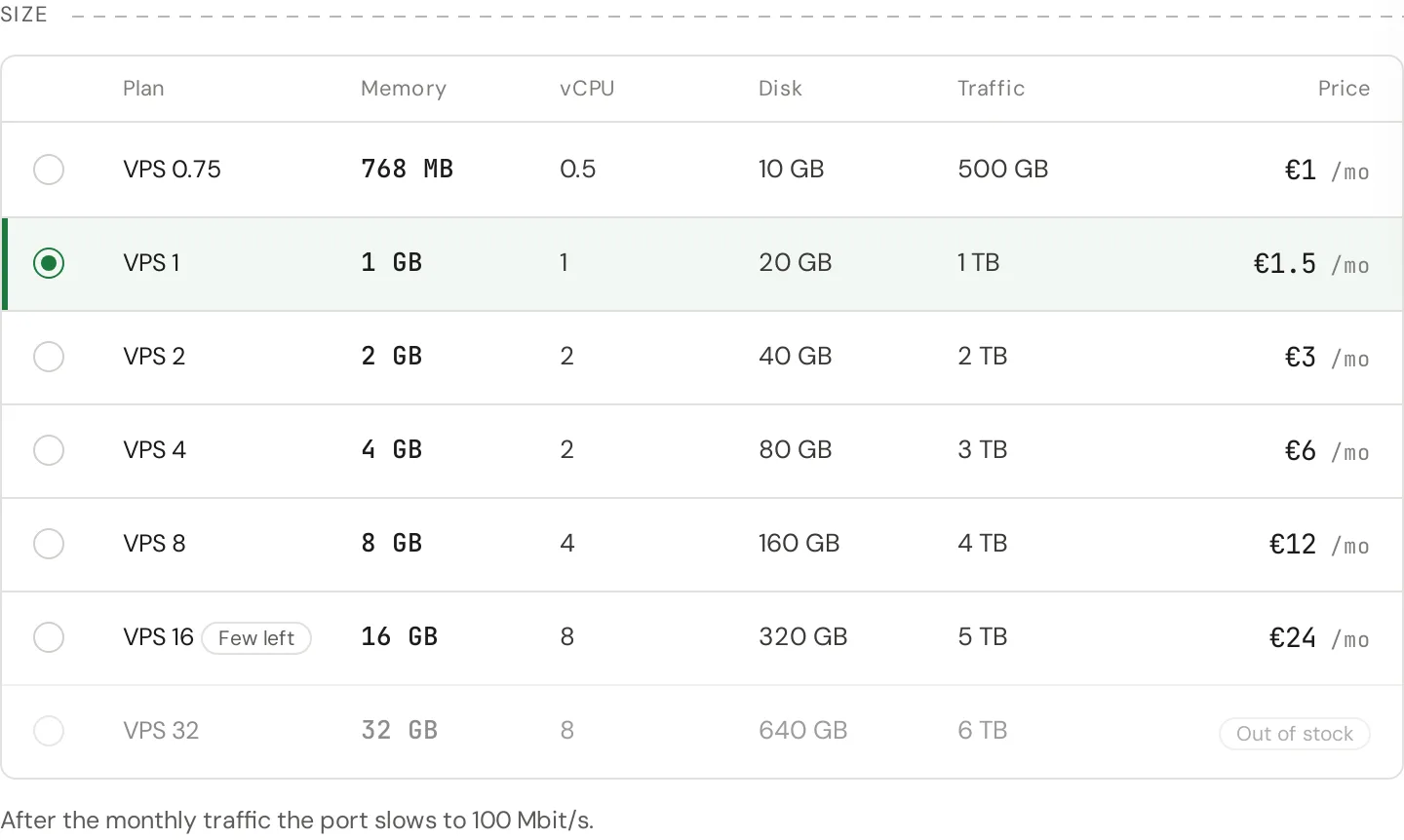
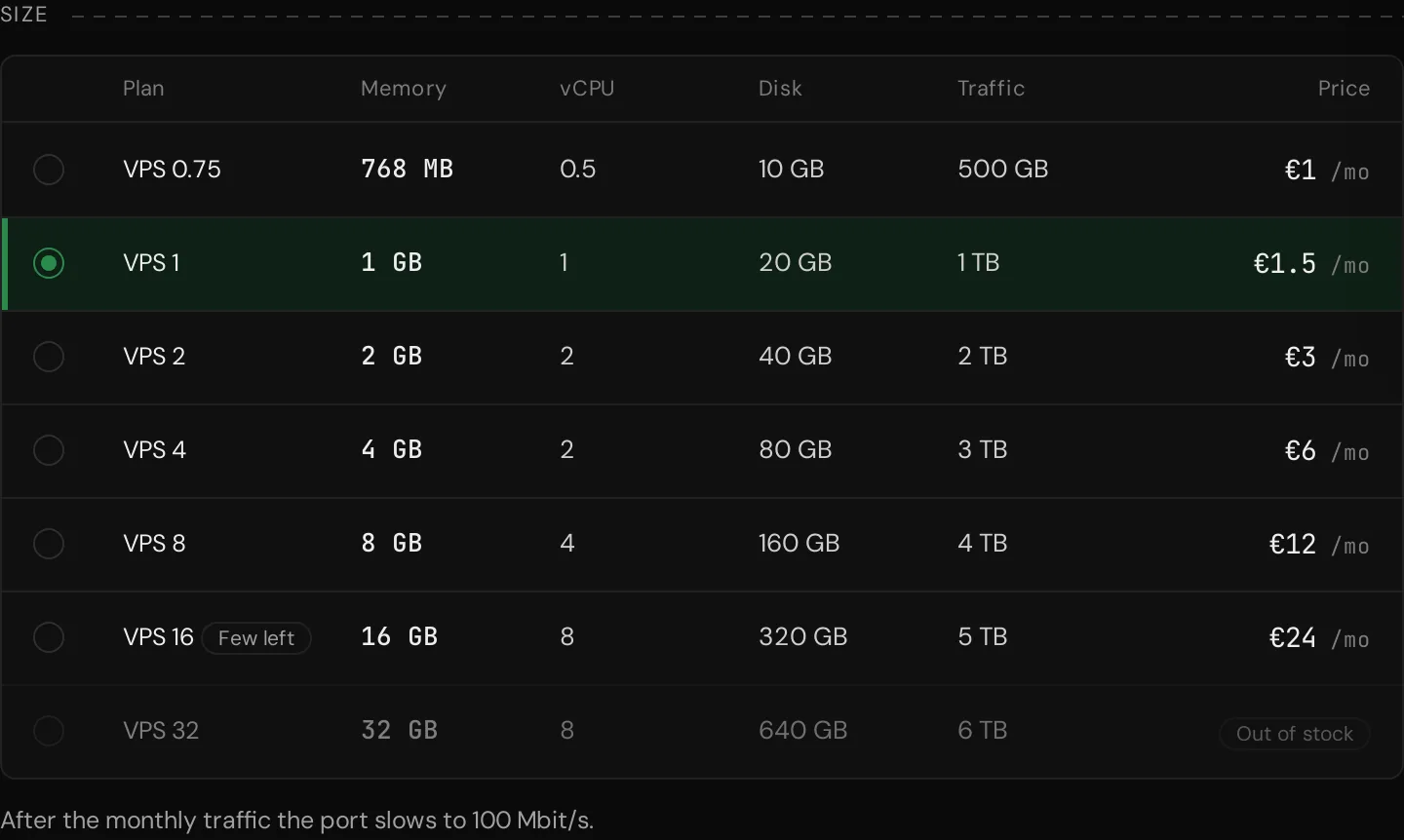
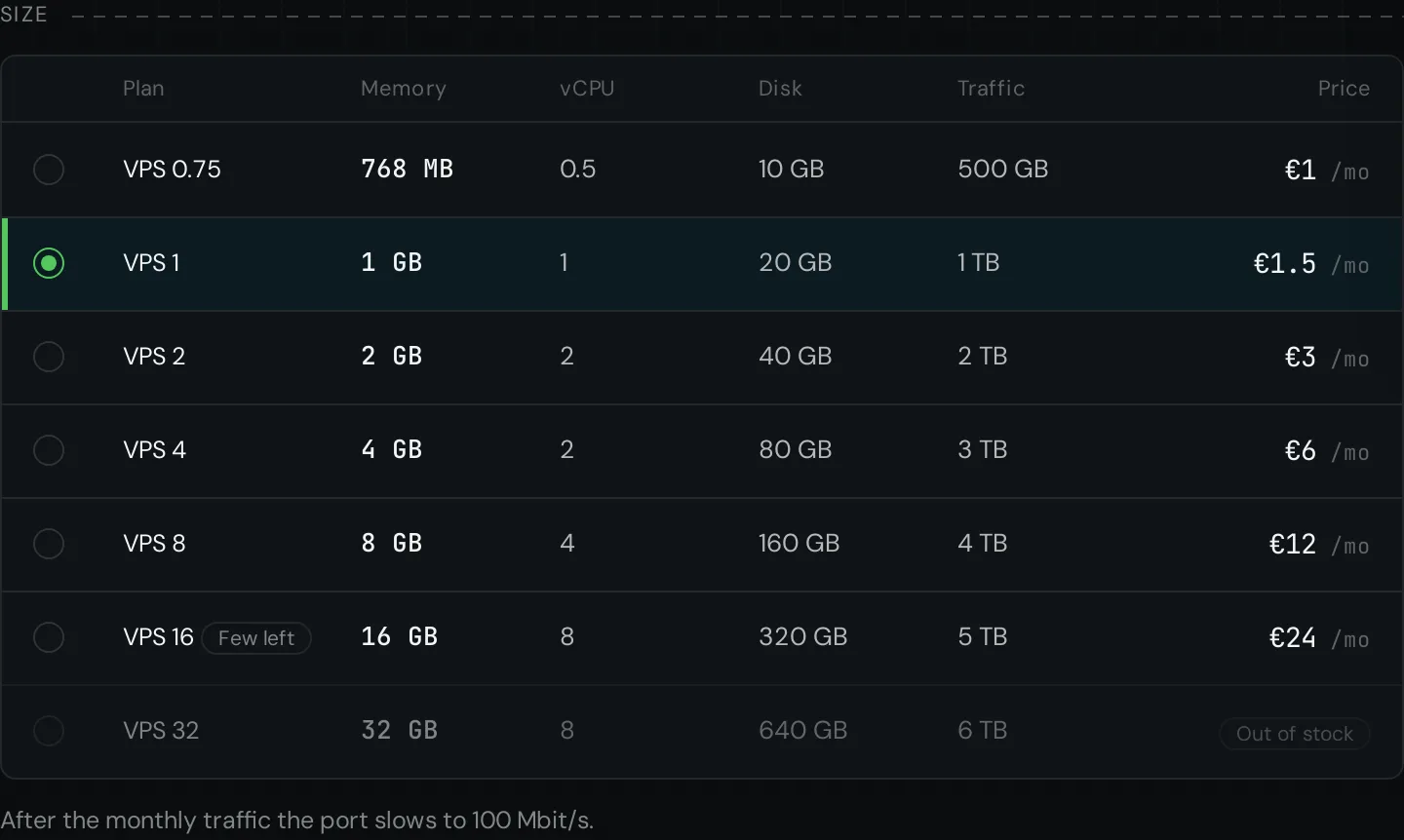
Each plan shows its memory, vCPU, disk, traffic and price a month. A plan marked Few left or Out of stock runs on spare capacity that is nearly or fully taken; pick another or check back later.
4. Name and access
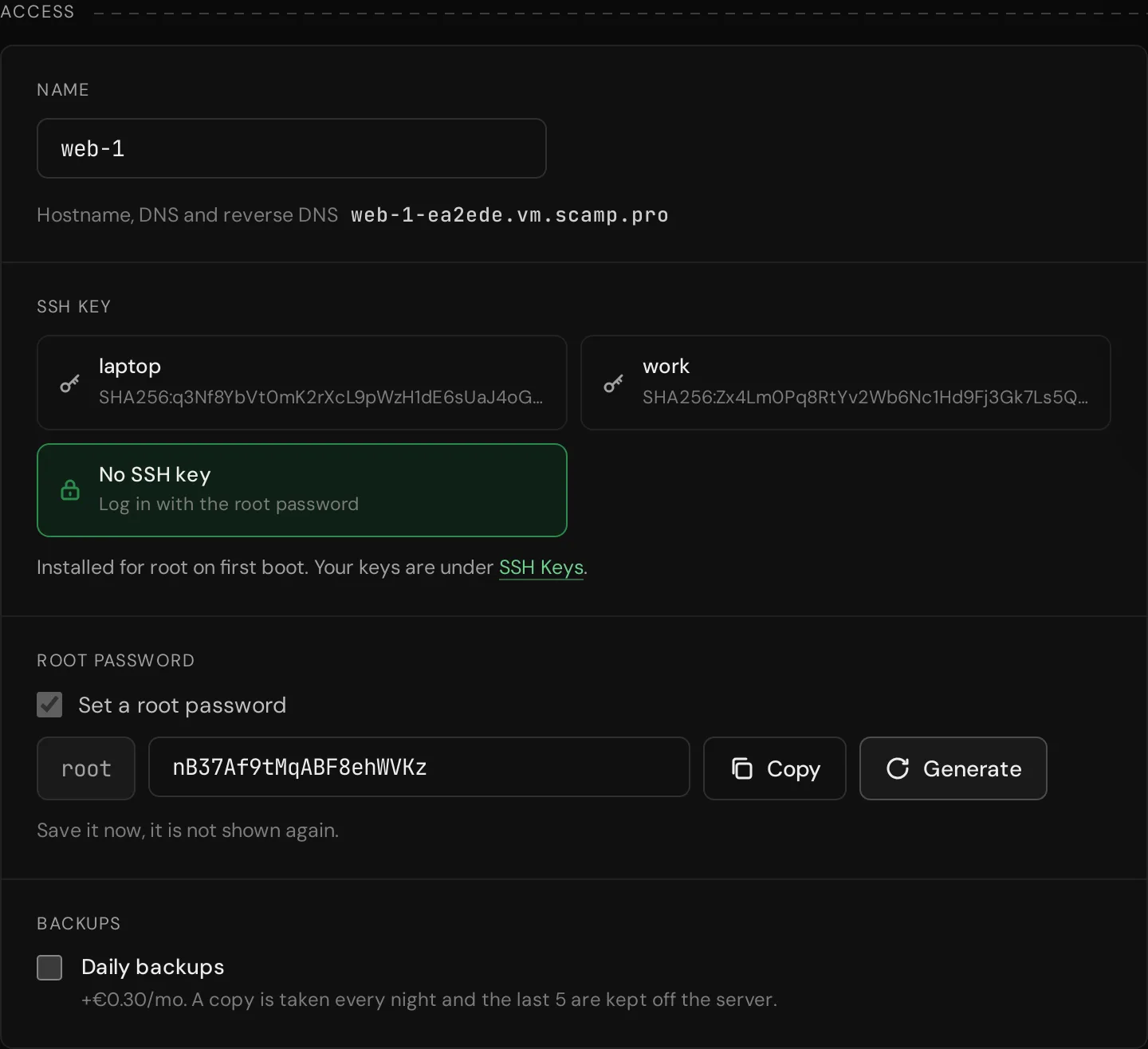
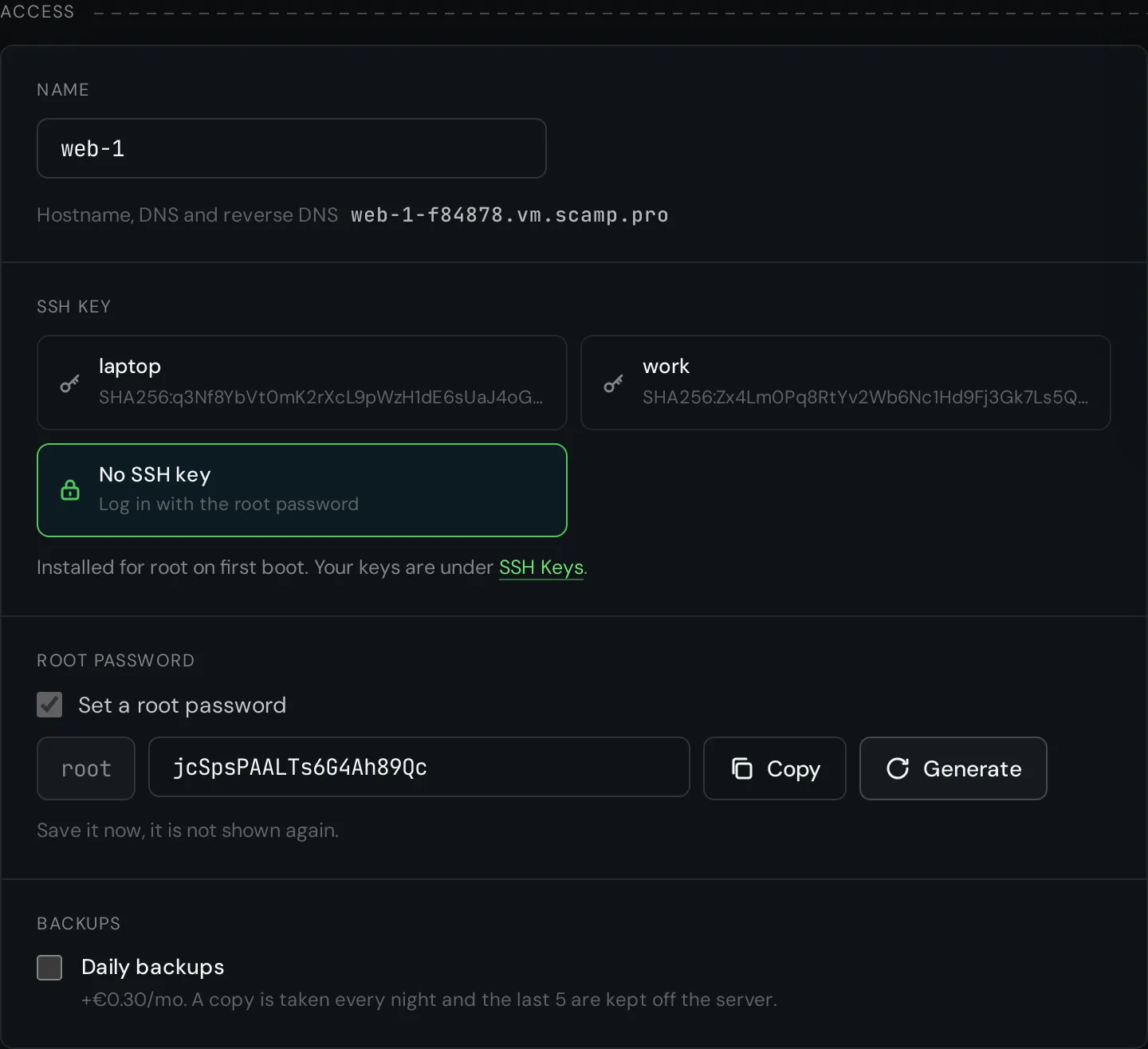
Type a name, or keep the one offered: 3 to 24 lowercase letters, digits and hyphens. The line under it shows the hostname the server gets, also used for its DNS and reverse DNS.
Under SSH key choose your key. It is put on the server for root on first boot. A root password is optional with a key; leave it off unless you need one.
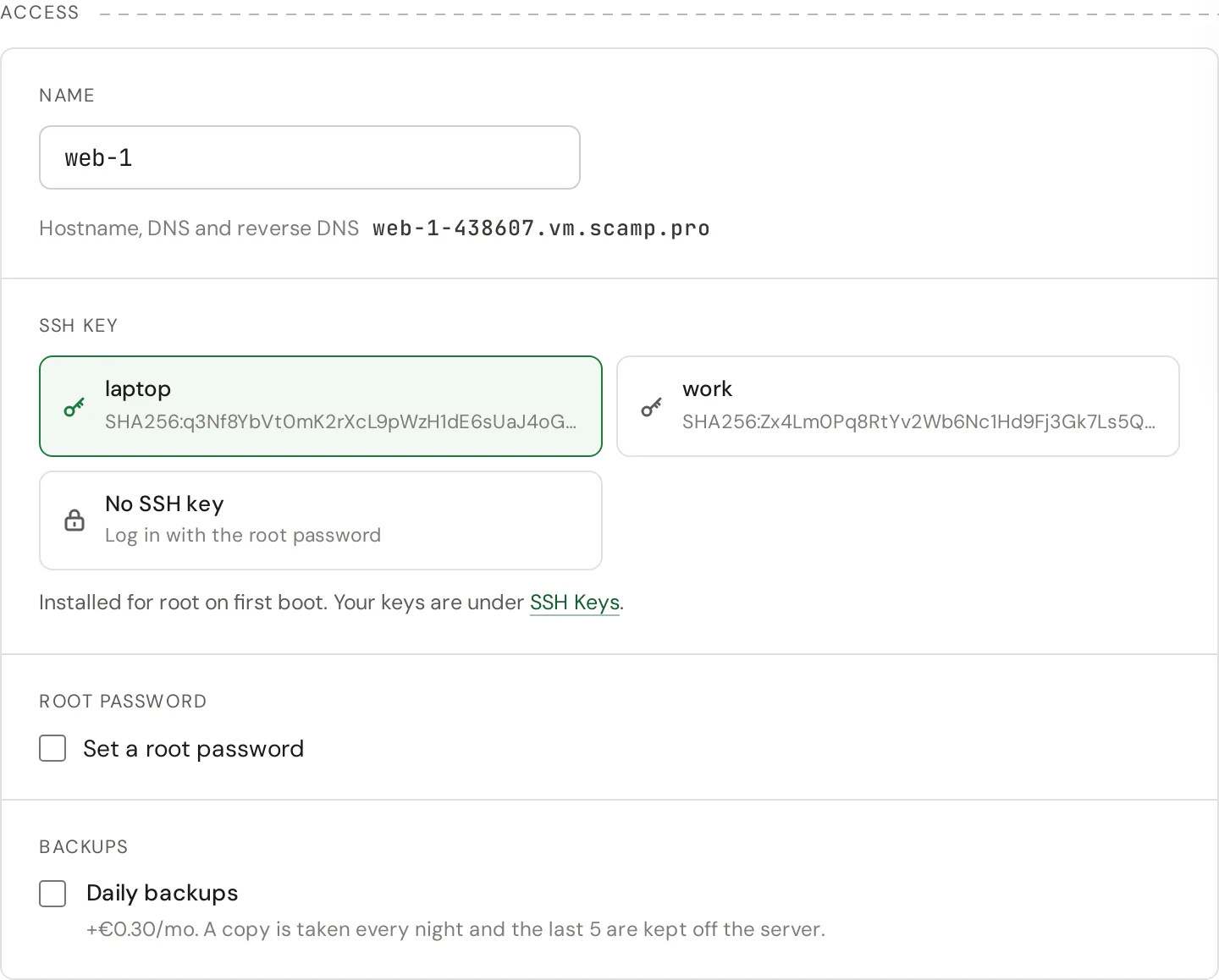
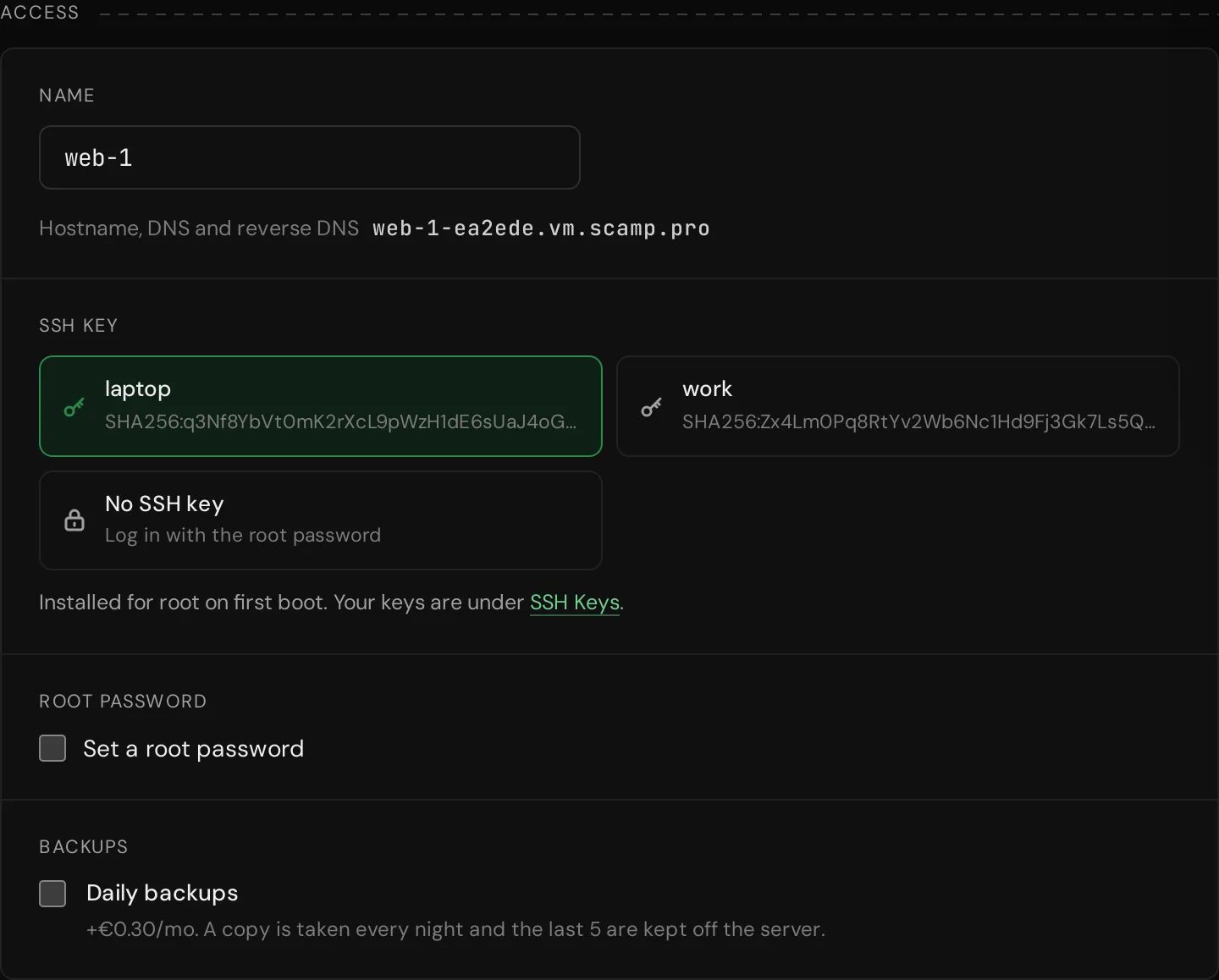
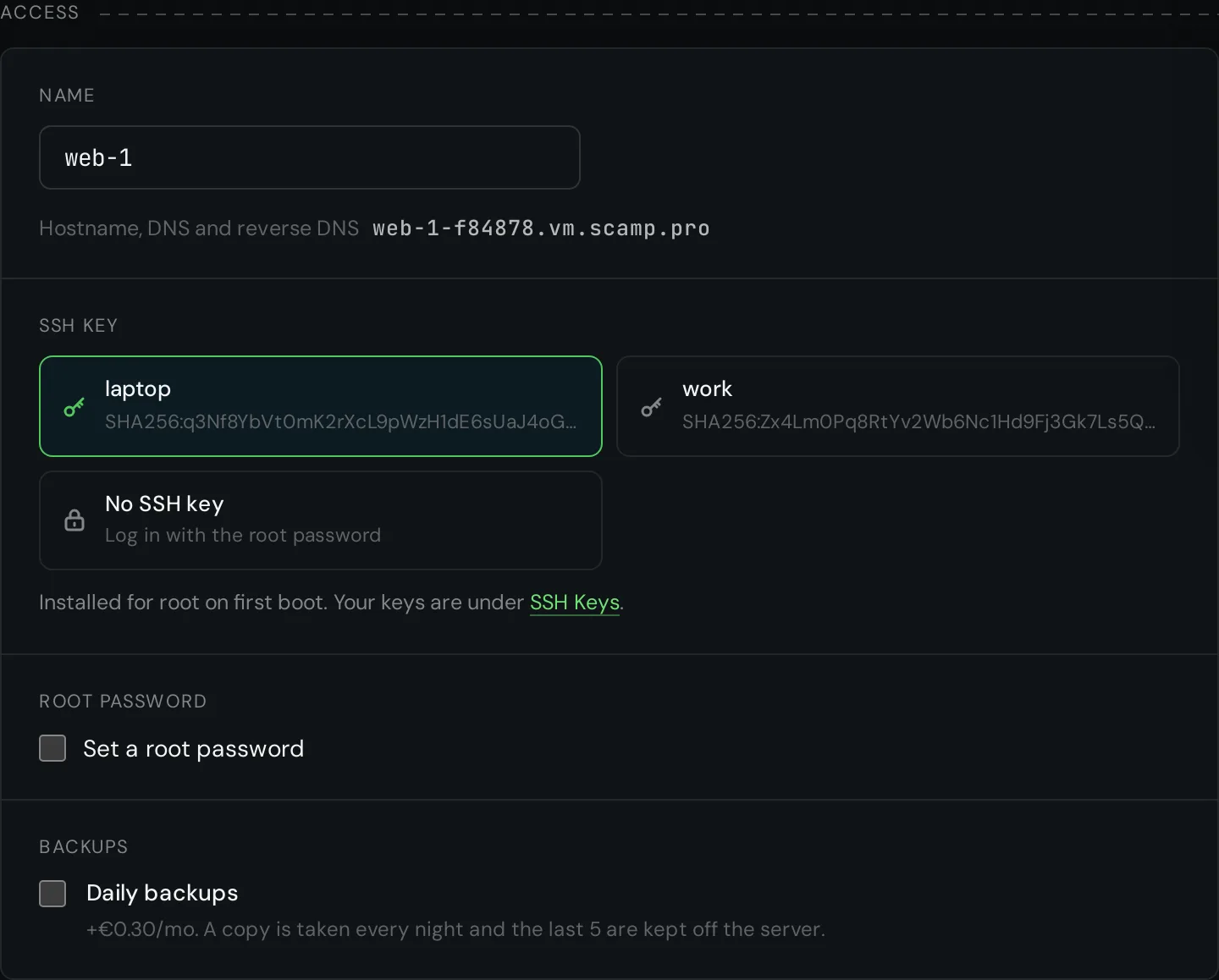
Turn on Daily backups if you want them. The price of the backups is shown next to the switch.
Without an SSH key
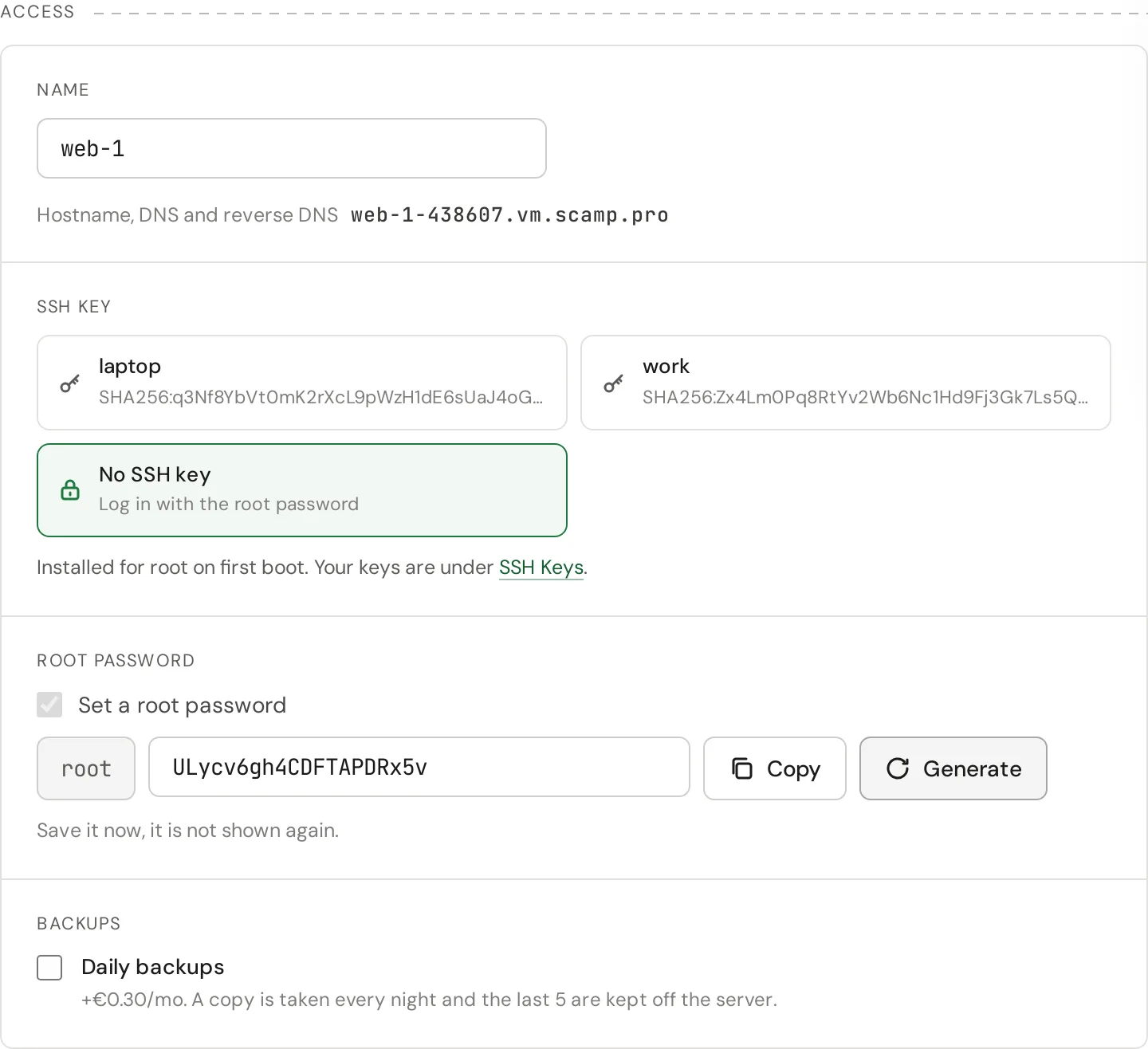
Choose No SSH key. A root password is then required and a strong one is filled in for you; press Generate for another, or type your own of 8 to 128 characters.
Press Copy and keep the password somewhere safe now. It is not shown again, and we cannot read it back for you.
5. Create
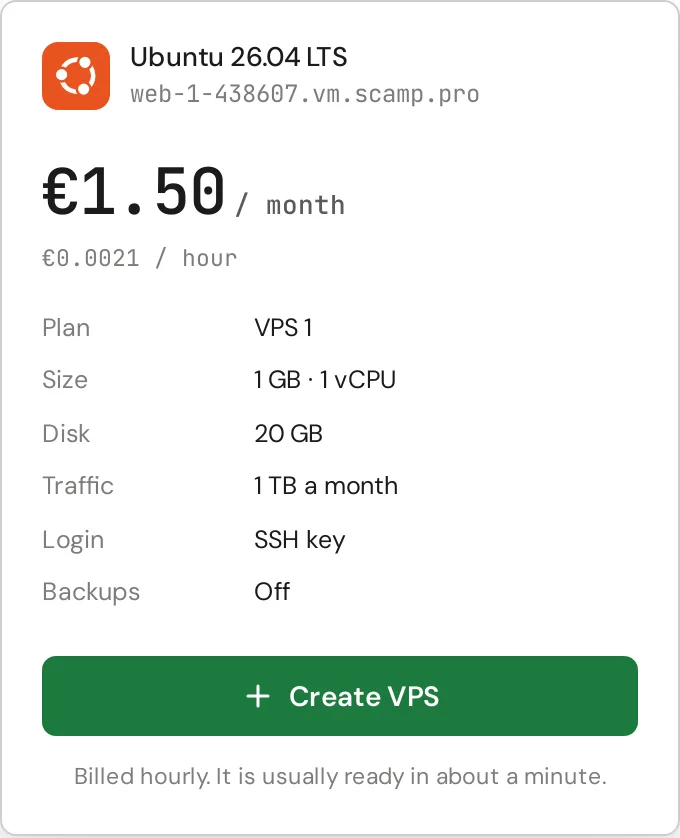
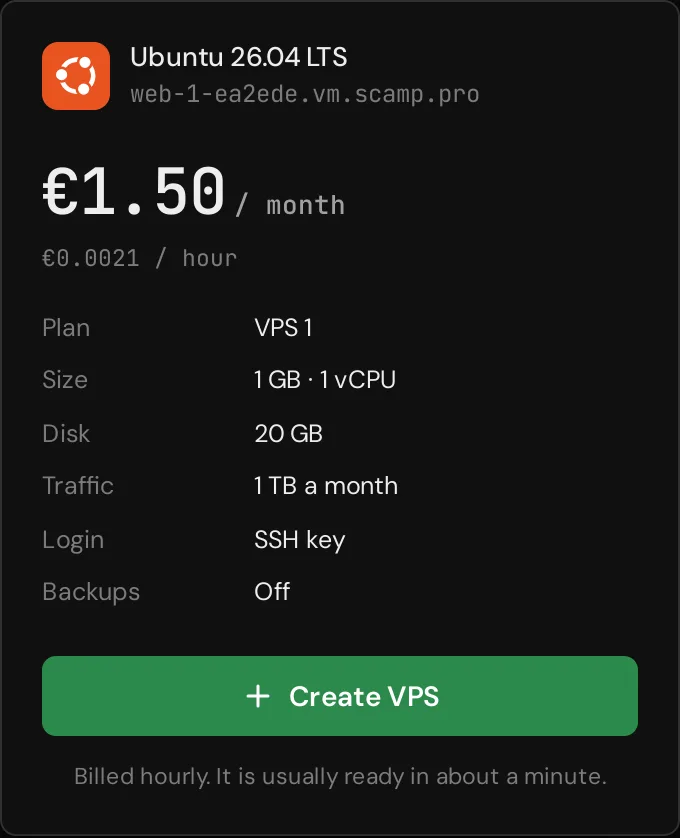
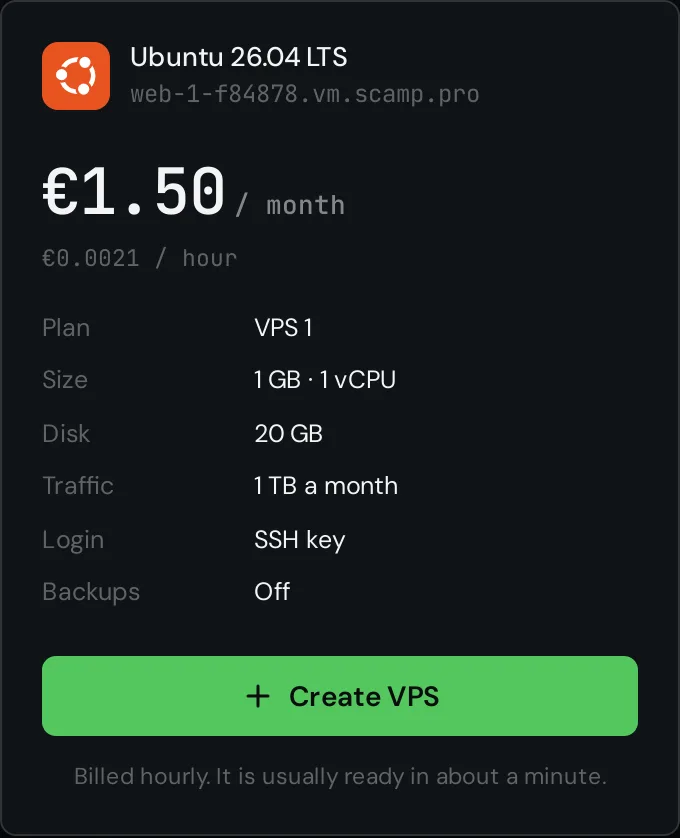
The summary on the right shows what you get and the price a month and an hour. Press Create VPS.
6. Connect
You are back on the Simple VPS list, where the new server shows its progress. When it turns Running, open it: the server page has its IPv4 and IPv6 addresses and the command to sign in.
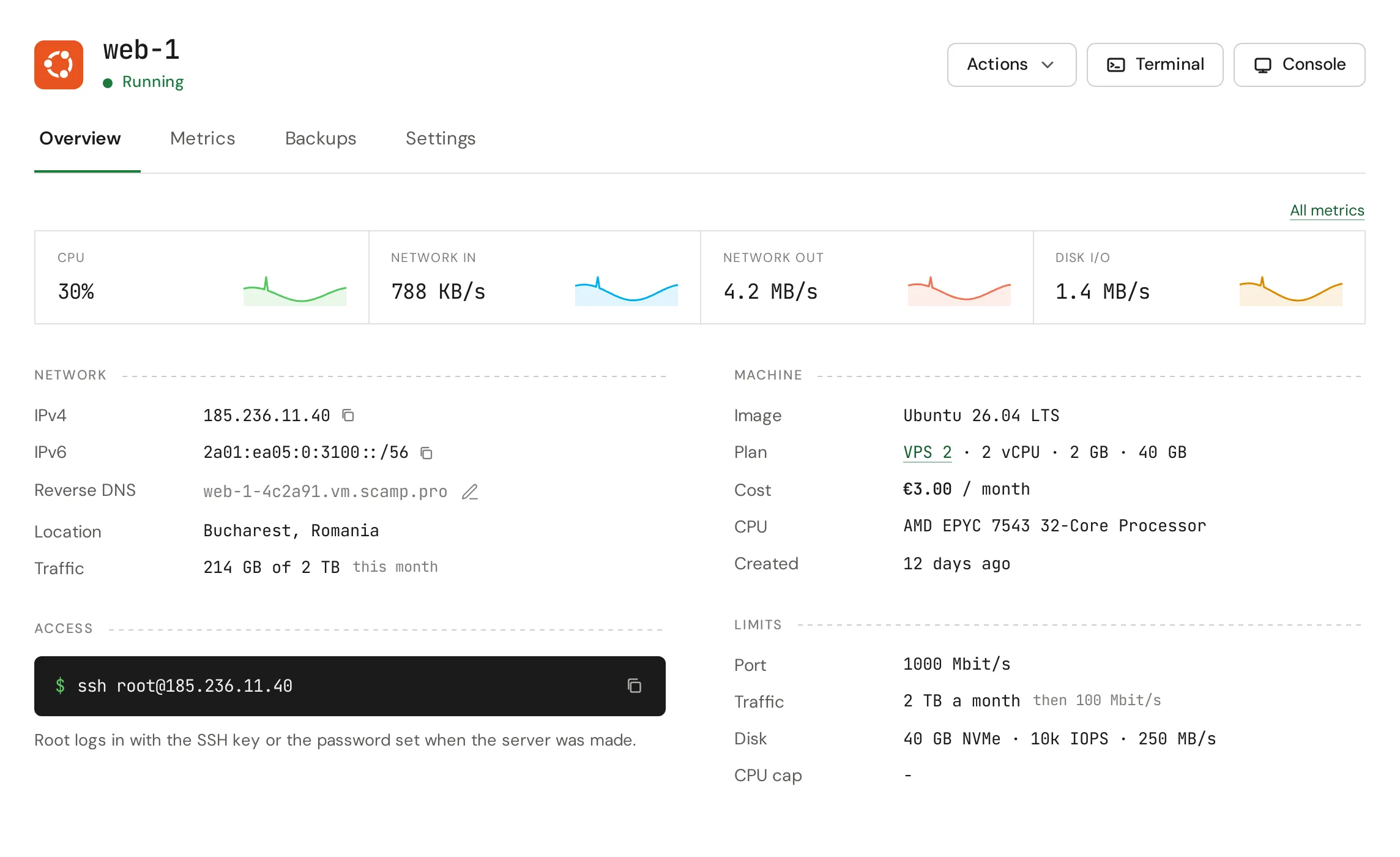
With a key, ssh signs you in without a question. With a password, ssh asks for the one you saved. The first time, ssh also asks whether you trust the server's key; answer yes.
If you cannot get in
The server page has Console and Terminal. Both reach the server in the browser without the network or SSH, so you can see what it shows on boot and fix a firewall rule or a broken sshd. A password you lost cannot be shown again: Reinstall on the server page gives you a fresh system with a new key or password.
Next: backups, reverse DNS and a bigger plan.