

Create a volume in the Cloud Panel
A volume is ready in a few seconds. Attach it to a running server, make a filesystem on it once, and mount it.
Before you start
You need a running cloud server to attach the volume to. The volume is billed by the hour for its size, attached or not.
1. Pick a disk
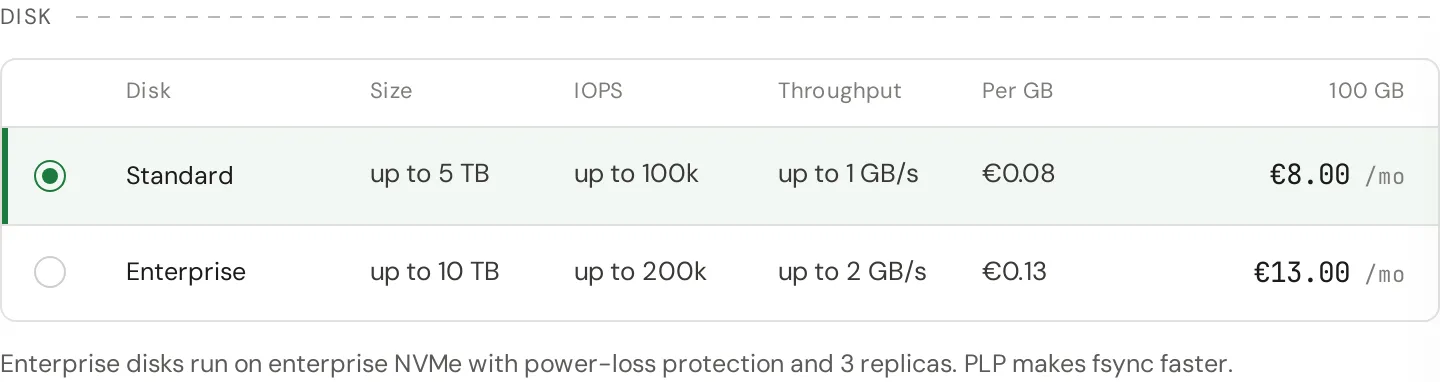
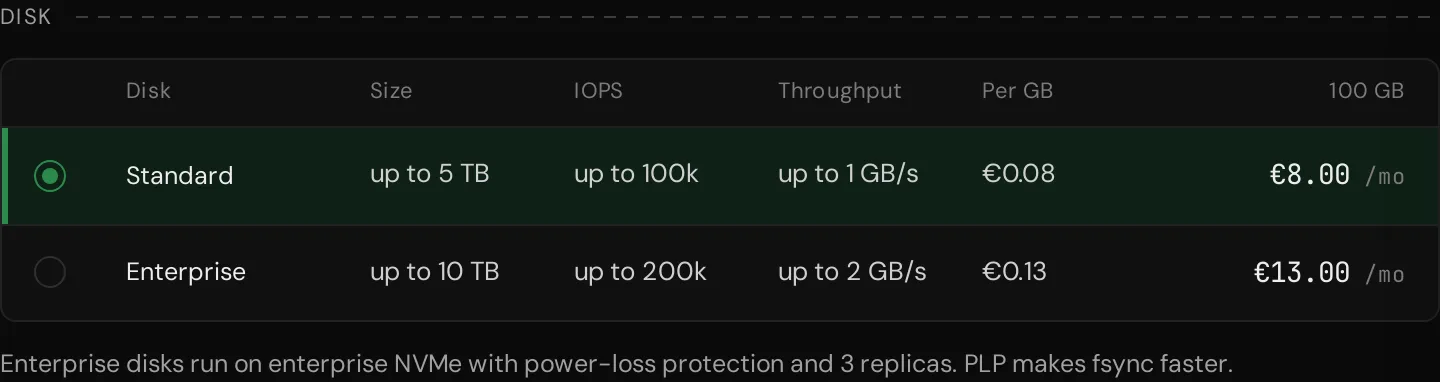
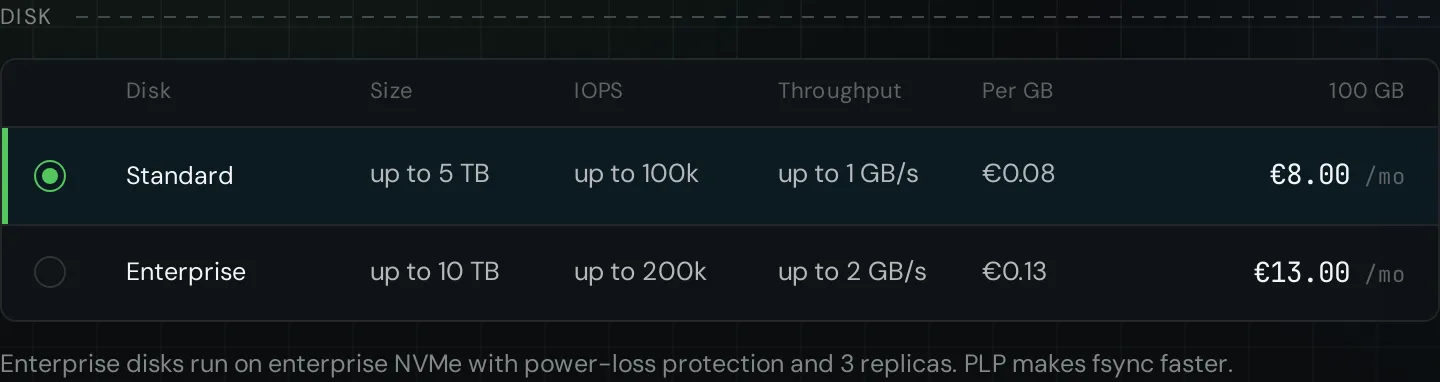
Open Volumes and press Create volume. Choose Standard for most data, or Enterprise for a database or a message queue: its drives have power-loss protection, which makes fsync faster. A volume cannot move between the two later.
2. Pick a size
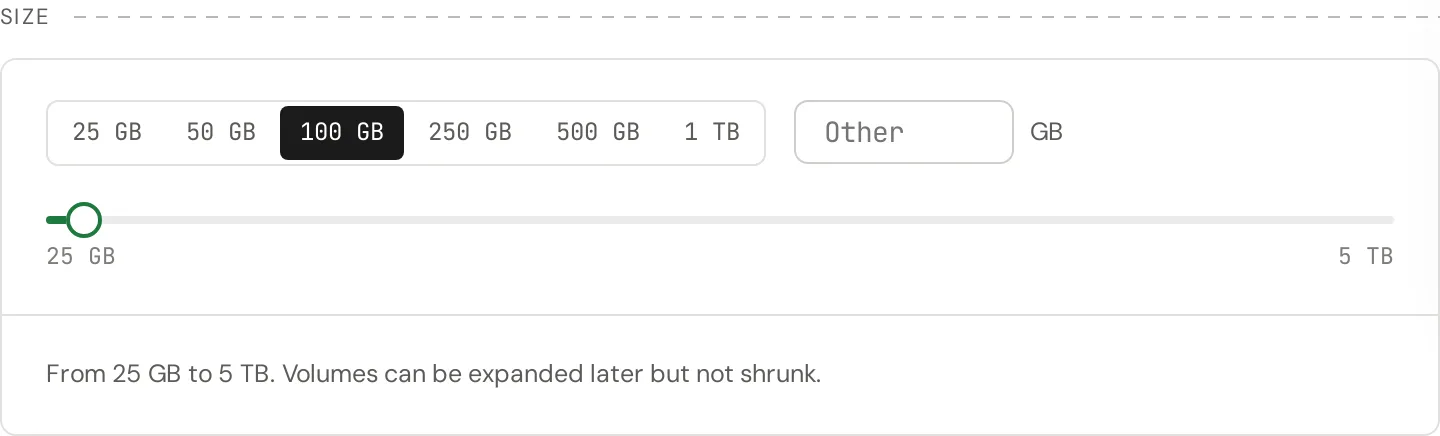
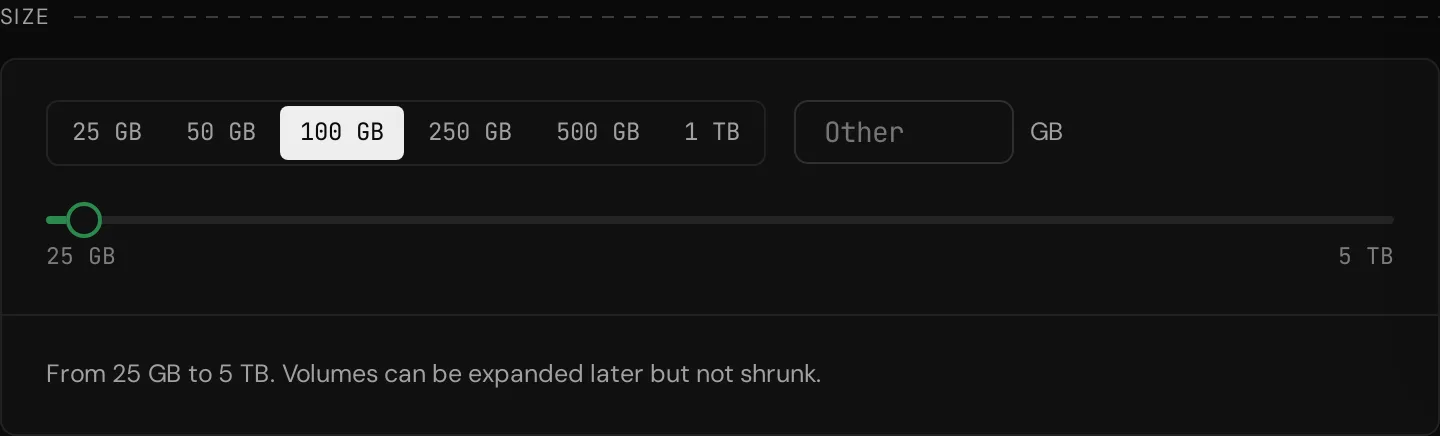
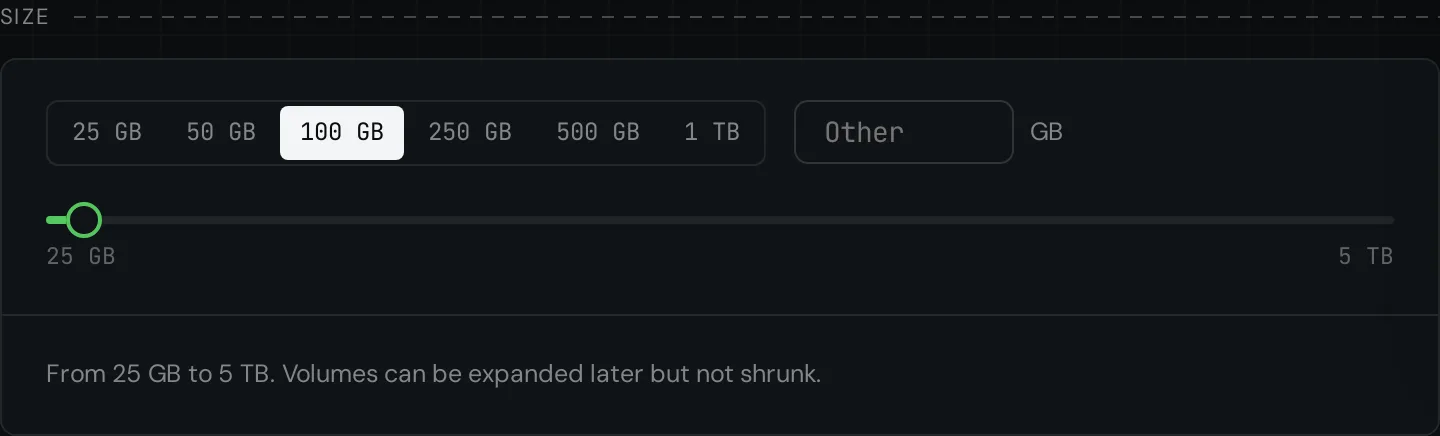
Pick a size or type your own. A volume can grow later while it is in use, but it cannot shrink, so start with what you need now.
3. Name and settings
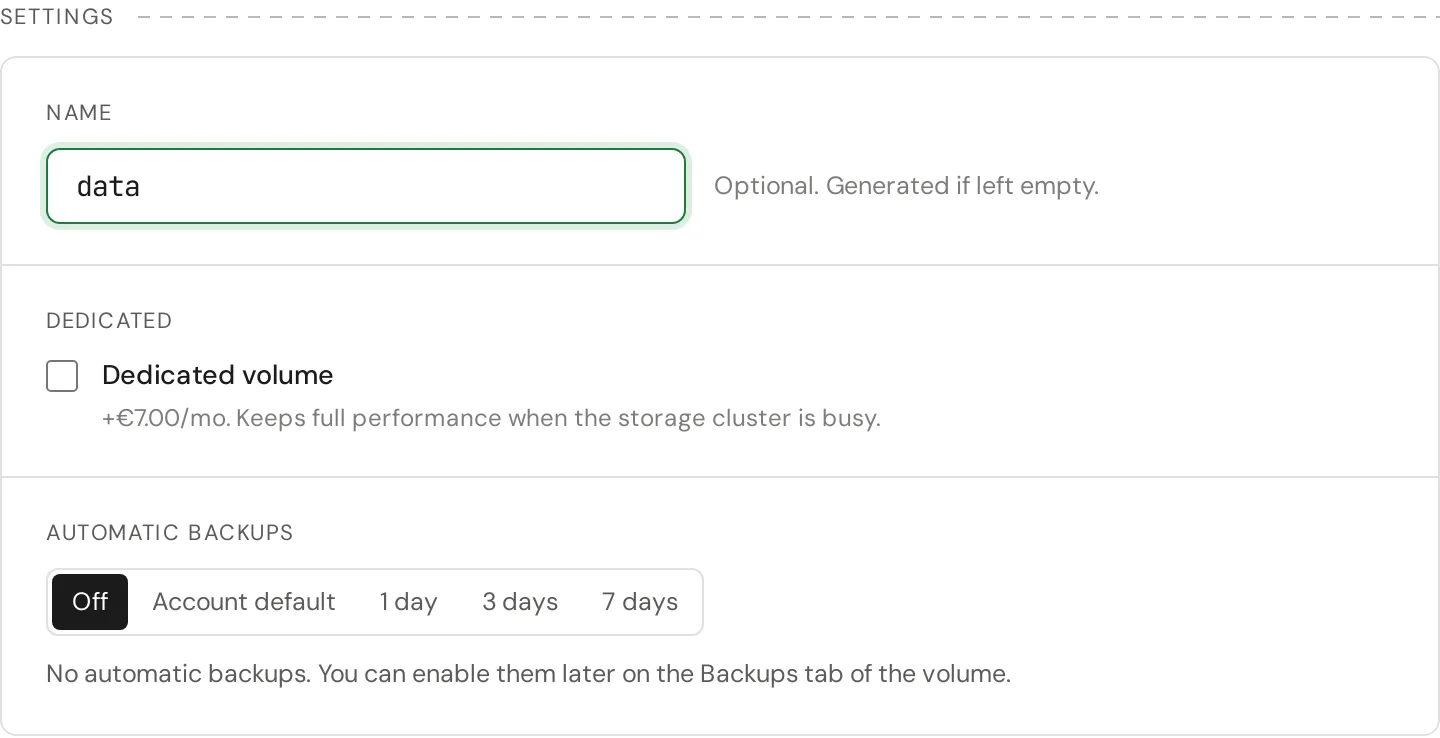
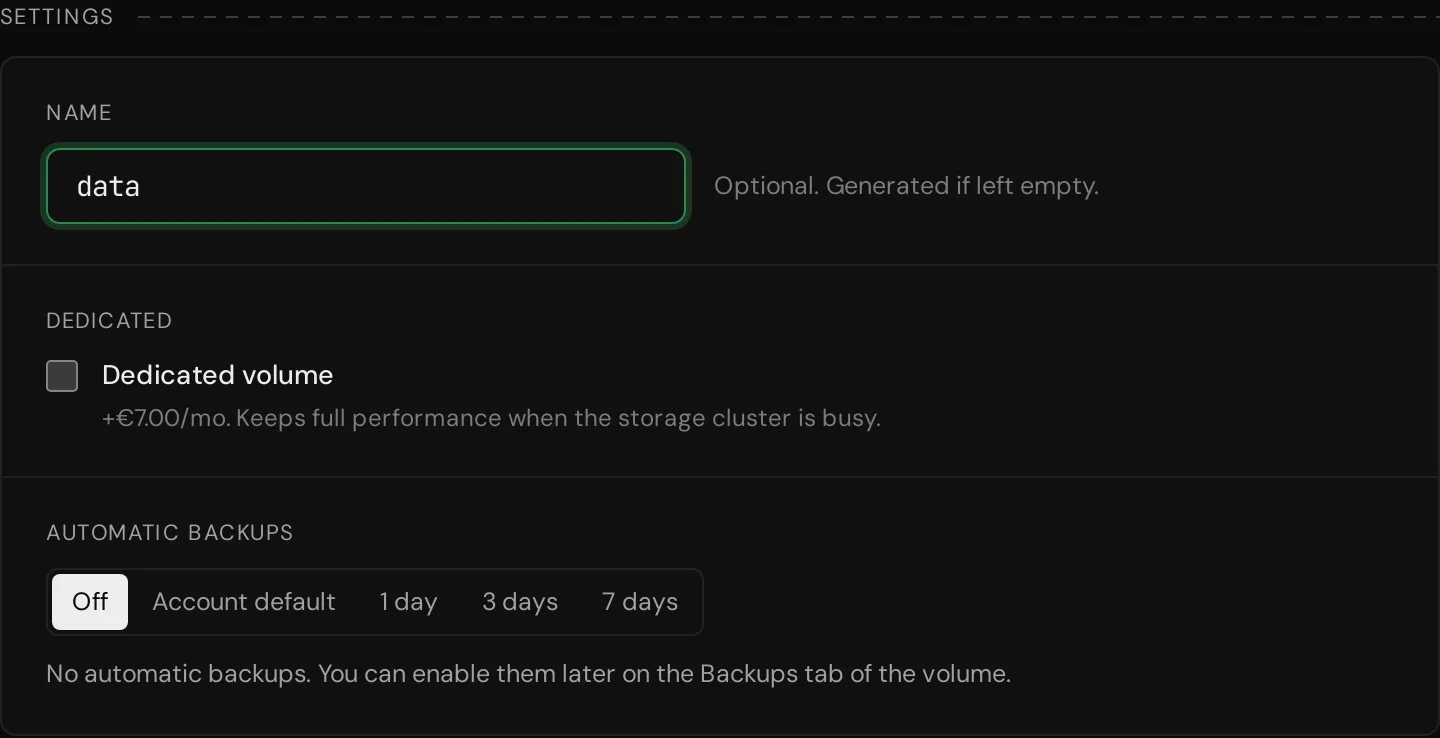
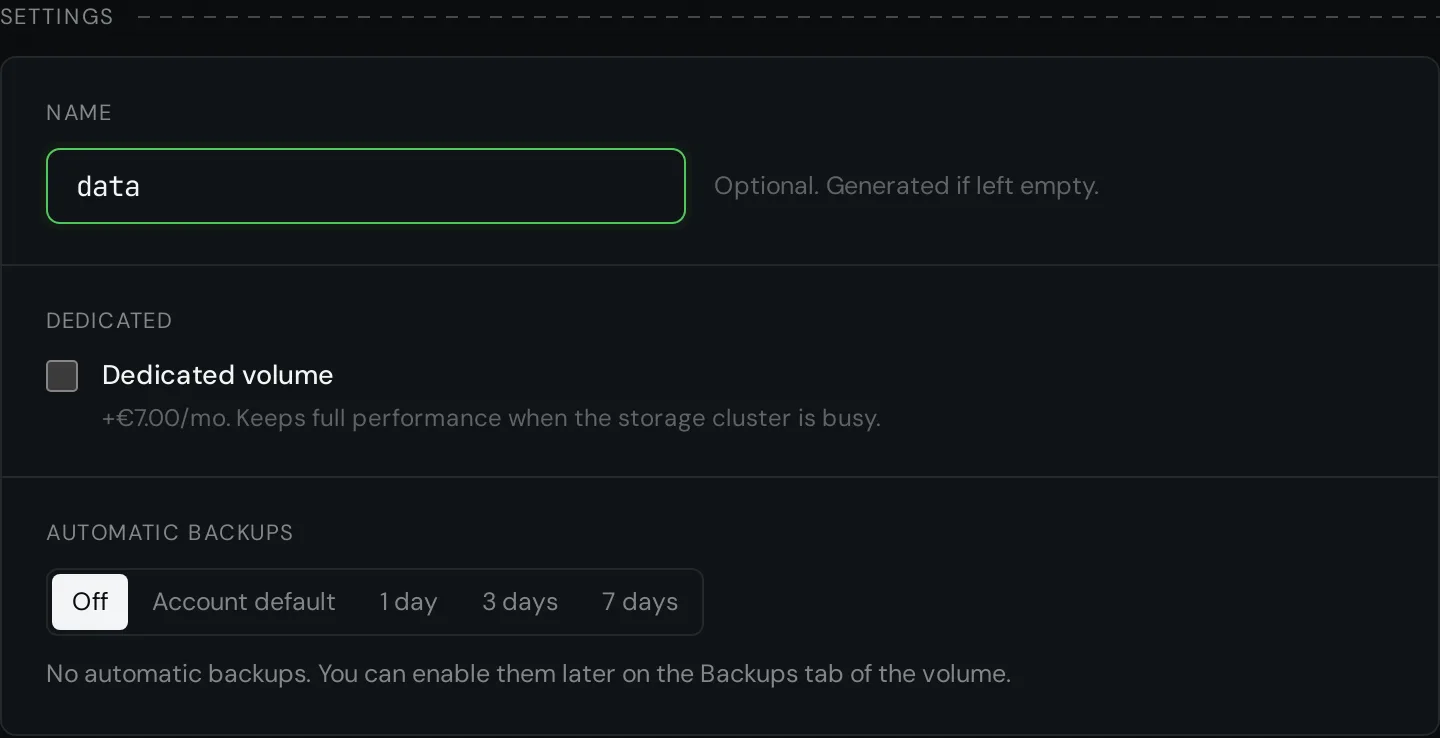
Name the volume, or leave the field empty for a generated name. Tick Dedicated volume if it must keep its full performance when the storage cluster is busy; the box shows what it adds, and you can switch later. Turn on Automatic backups if you want them.
4. Create
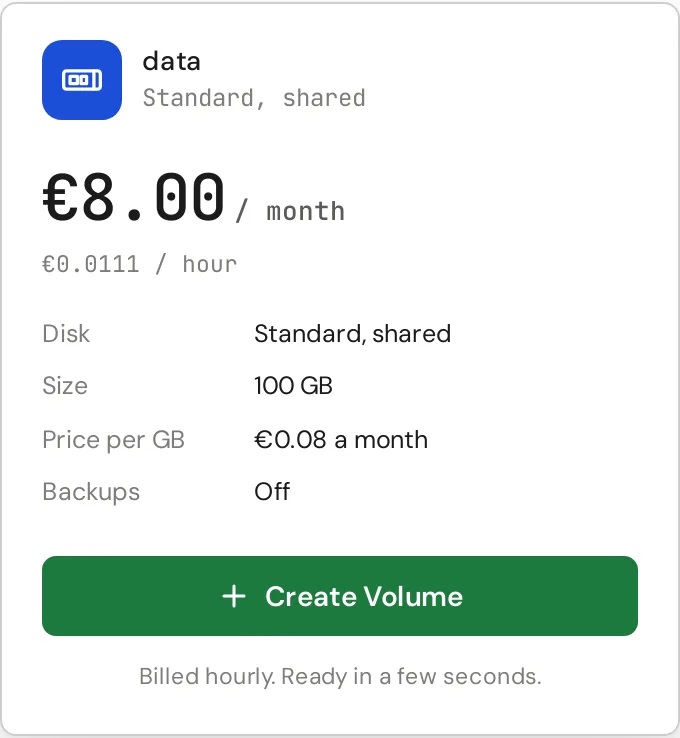
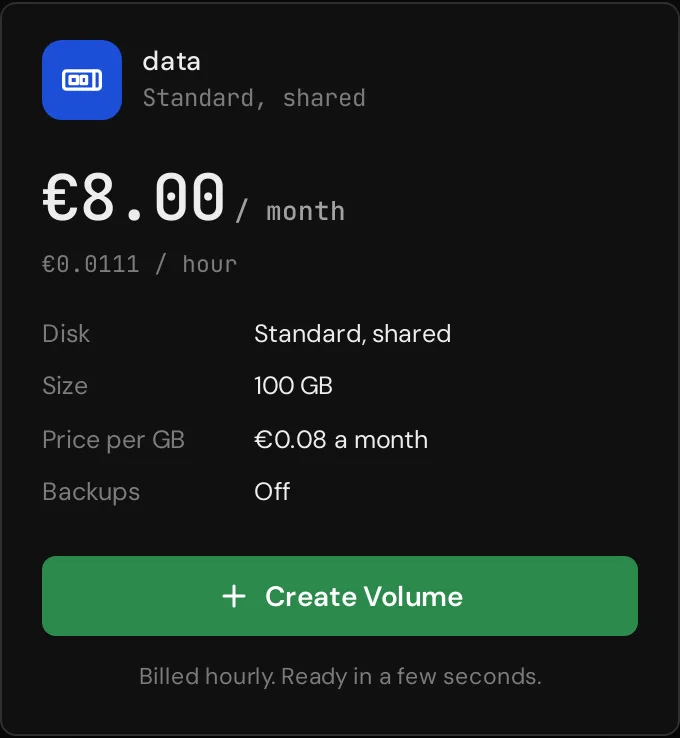
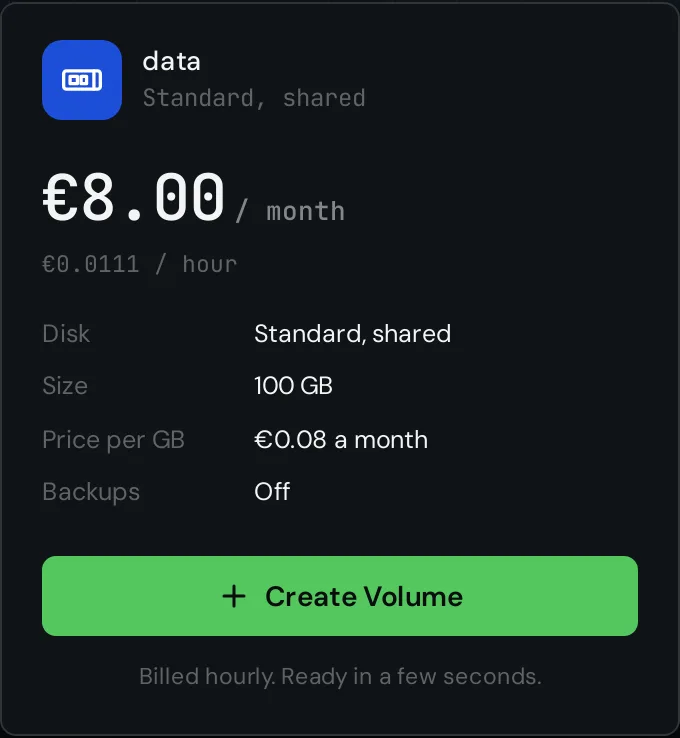
The summary on the right shows the disk, the size and the price a month and an hour. Press Create Volume. You are back on the list of volumes, where the new one turns Available within seconds.
5. Attach it to a server
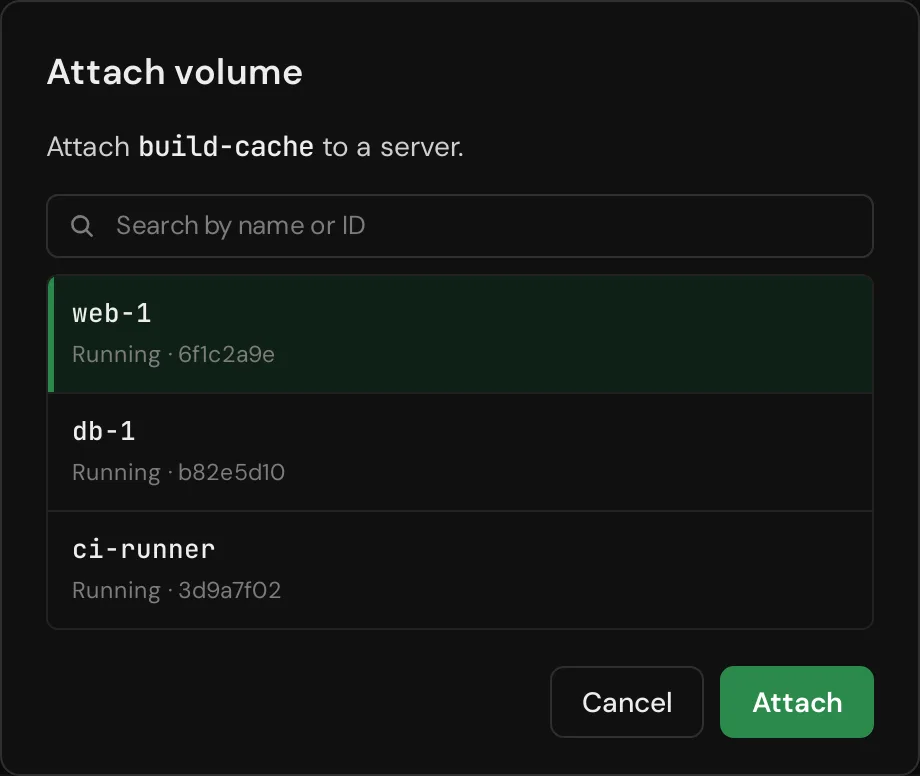
Open the volume and press Attach. The same is in the menu of the volume on the list.
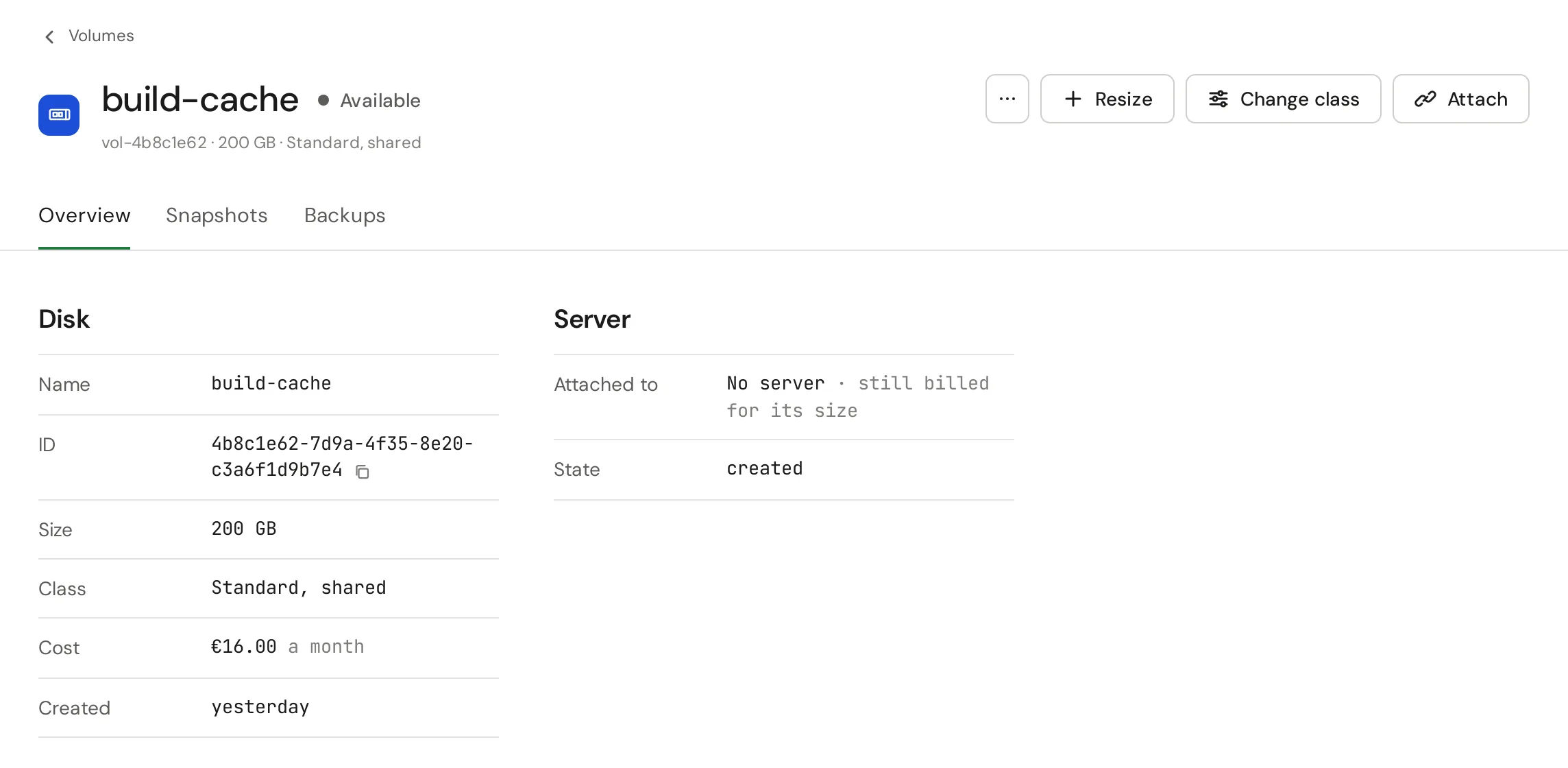
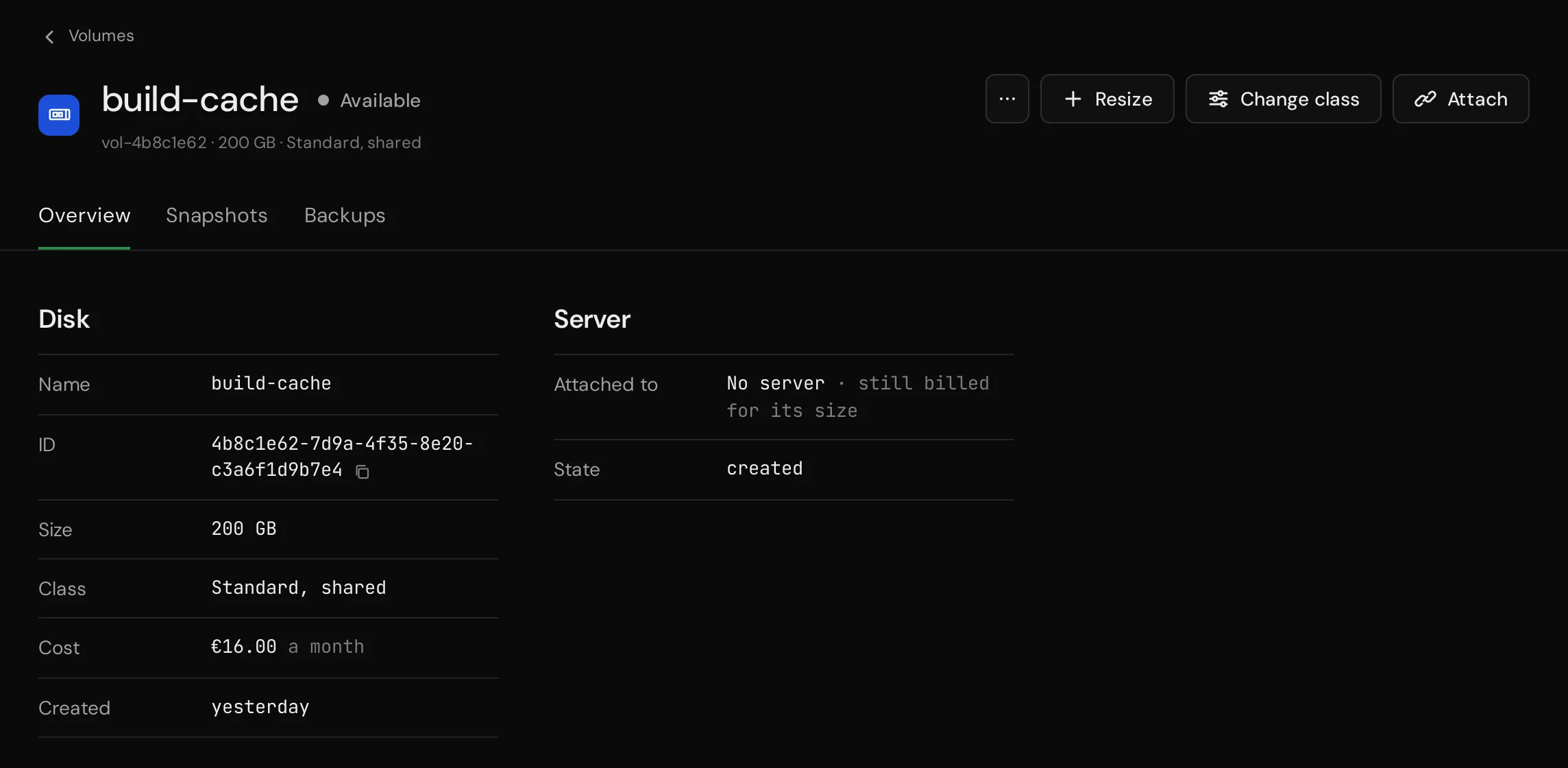
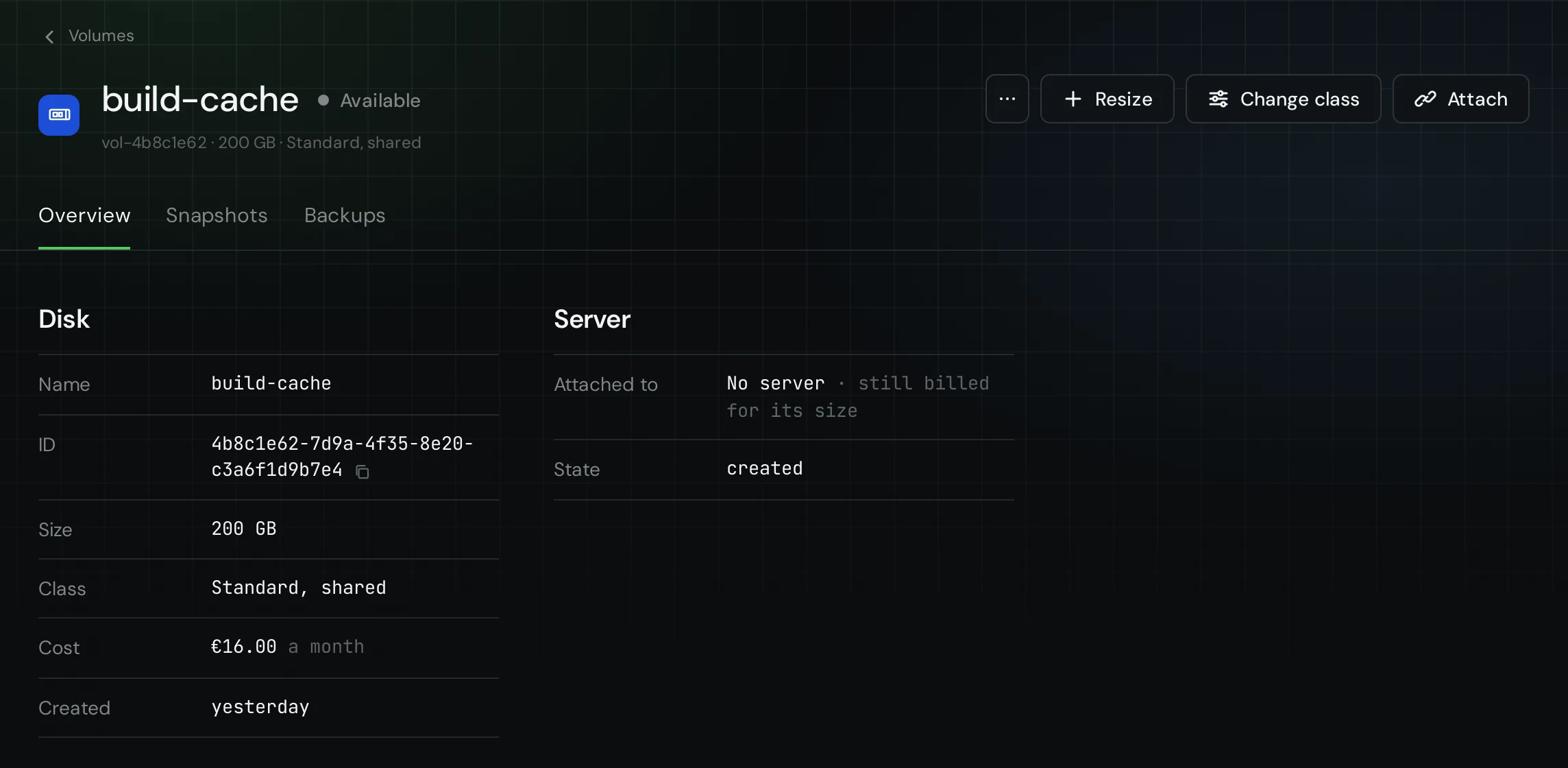
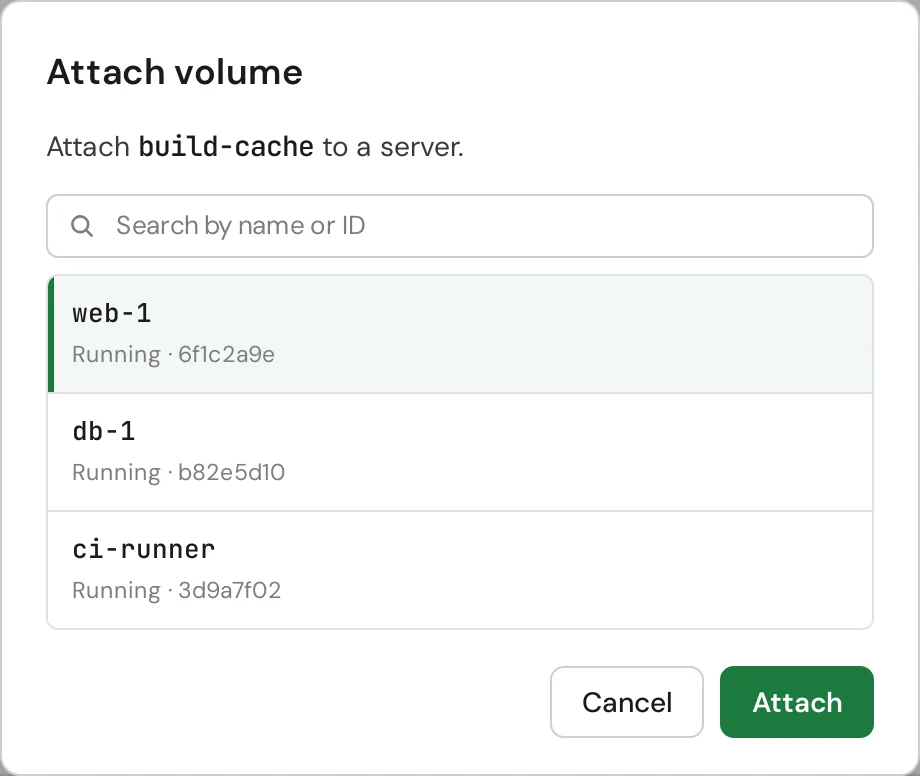
Pick a running server and press Attach. The server does not restart.
6. Format and mount
Log in to the server. The volume is the newest disk, usually /dev/vdb:
lsblkMake a filesystem on it and mount it. Do this only on a new, empty volume: mkfs erases what is on the disk. A volume made from a snapshot or a backup already has its data; mount it as it is.
sudo mkfs.ext4 /dev/vdb
sudo mkdir -p /mnt/data
sudo mount /dev/vdb /mnt/data
To mount it on every boot, add it to /etc/fstab by its UUID. nofail lets the server boot when the volume is not attached.
echo "UUID=$(sudo blkid -s UUID -o value /dev/vdb) /mnt/data ext4 defaults,nofail 0 2" | sudo tee -a /etc/fstabDetach
Unmount the volume inside the server first, then choose Detach in the ... menu of the volume. Its data stays, ready for another server.
sudo umount /mnt/dataNext: grow a volume, snapshots and backups and the API.